TV Not Showing Content
A paired TV is on, connected, but shows the wrong content (or nothing). What to check.
TV Not Showing Content
What you'll learn: A checklist for when a TV is paired and online, but doesn't show what you expect — wrong logo, missing menu items, blank welcome screen, or the wrong language.
Time needed: 5–15 minutes.
Before you start
You'll need:
- Login access to the admin panel.
- Physical access to the TV (or someone in the room).
Check 1: Is the TV actually online?
Go to Devices in the sidebar. Find the device for the affected room. Look at the Presence column:
- Online (green) — talking to the server in the last minute. Skip to the next check.
- Stale (amber) — last seen 1–5 minutes ago. Wait, may come back.
- Offline (red) or Never — the TV isn't reaching the server. Treat as a network/power issue.
If offline:
- Confirm the TV is powered on and not in standby.
- Confirm the TV is connected to your hotel's network (Wi-Fi or wired).
- If your hotel has separate networks for staff vs. guest, make sure the TV is on the right one.
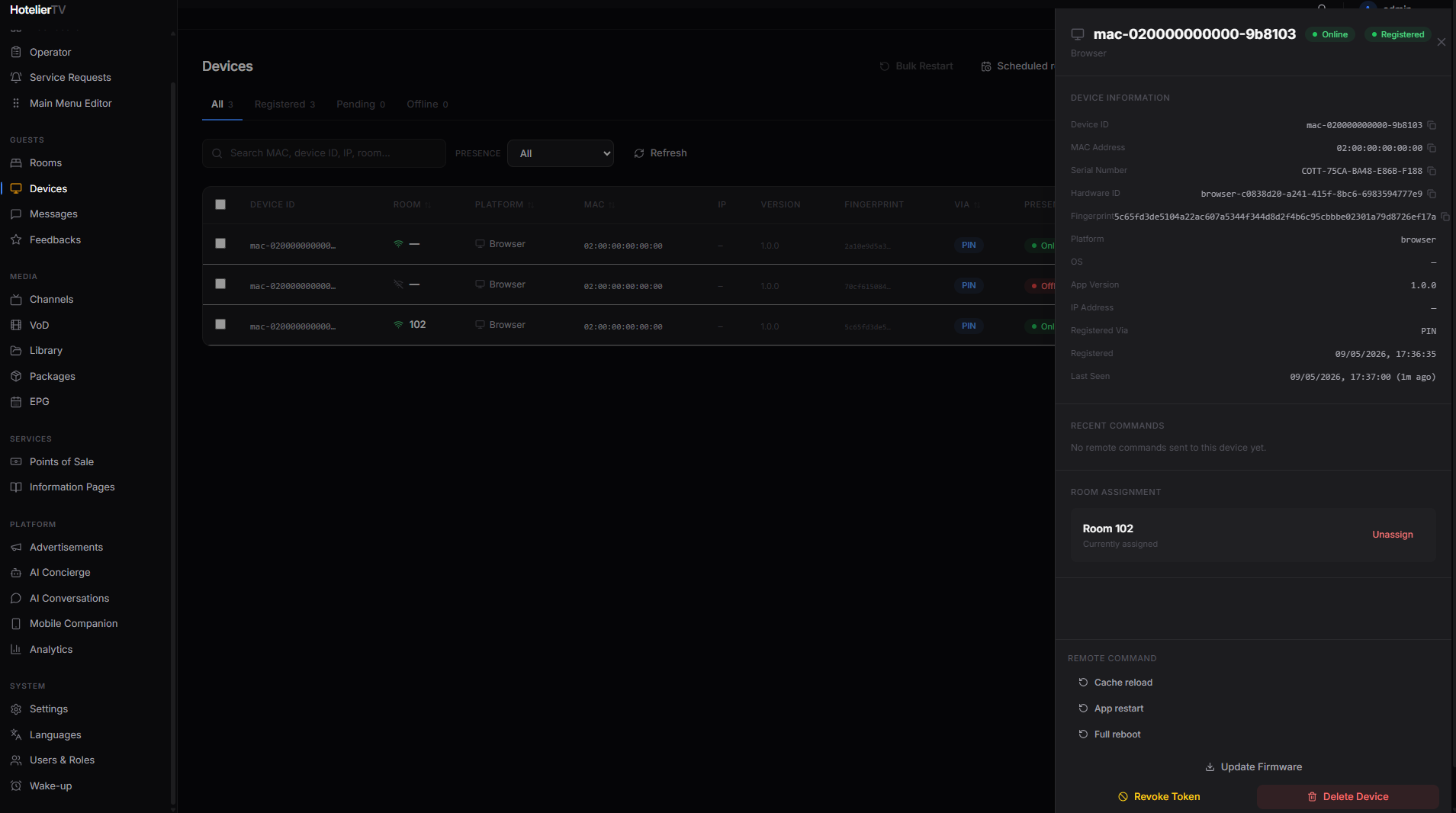
Check 2: Cache reload
The TV's app caches the menu, logo, and content. If you made changes in the admin panel and don't see them on the TV, force a refresh:
- Go to Devices, find the device row.
- Click the three-dot menu at the right of the row.
- Pick Cache reload.
This is the lightest restart — about 1–2 seconds of downtime — and fixes most "it didn't update" issues.
If that doesn't help, try App restart (5 seconds downtime), then Full reboot (30–60 seconds) as a last resort.
Check 3: Is anything actually configured?
If the home screen looks empty or has placeholder text:
- No logo: Set it in Settings → Identity. See Hotel Branding.
- No menu tiles: Add tiles in Main Menu Editor. See Customize the Main Menu.
- No channels in Live TV: Add channels in Channels. See Browse the Channel Marketplace.
- AI Concierge tile shows "unavailable": AI Concierge isn't enabled. See Set Up AI Concierge.
Check 4: Wrong language?
If the TV is in English but the guest wants German:
- The room's language is set per-room. Go to Rooms, click the room, change Language in the guest info panel.
- The system has to have that language enabled. Go to Languages and enable it if missing. See Enable Languages.
Check 5: Wrong package / wrong channels?
If a Premium room shows Standard channels (or vice versa):
- Check the room's assigned package. Rooms → click room → Edit → Package dropdown.
- Check the package itself includes the right channels. Packages → click the package → review channel list.
See: Understand Channel Packages.
Check 6: Emergency banner stuck on screen?
If a red emergency banner is on every TV and won't go away:
- Go to Messages → Emergency tab, or click [Emergency] at the top of the Rooms page.
- Click [Deactivate All].
If banners are still on individual TVs, Cache reload them.
Check 7: Multiple TVs on the same room
Each room can technically have multiple paired devices (a bedroom TV and a bathroom TV, for instance). They all show the same content. If only one is misbehaving, the issue is on that specific TV — try Cache reload or unpair/repair just that one.
What if none of the above helps?
Contact COTT support and include:
- The room number.
- The device's MAC address (visible in Devices → click row → MAC Address).
- Time of day the issue happened.
- A photo of the TV screen if possible.
See: When to Contact Support.