Customize the Main Menu
Change the tiles guests see when they turn on the TV.
Customize the Main Menu
What you'll learn: How to change the home screen on guest TVs — the grid of tiles like "Live TV", "Movies", "Restaurant", "Spa", and so on.
Time needed: 10–20 minutes.
Before you start
You'll need:
- Login access. See First Login.
- A rough idea of which tiles you want to keep, hide, or rename.
Step 1: Open the Main Menu Editor
In the left sidebar, under MAIN, click Main Menu Editor.
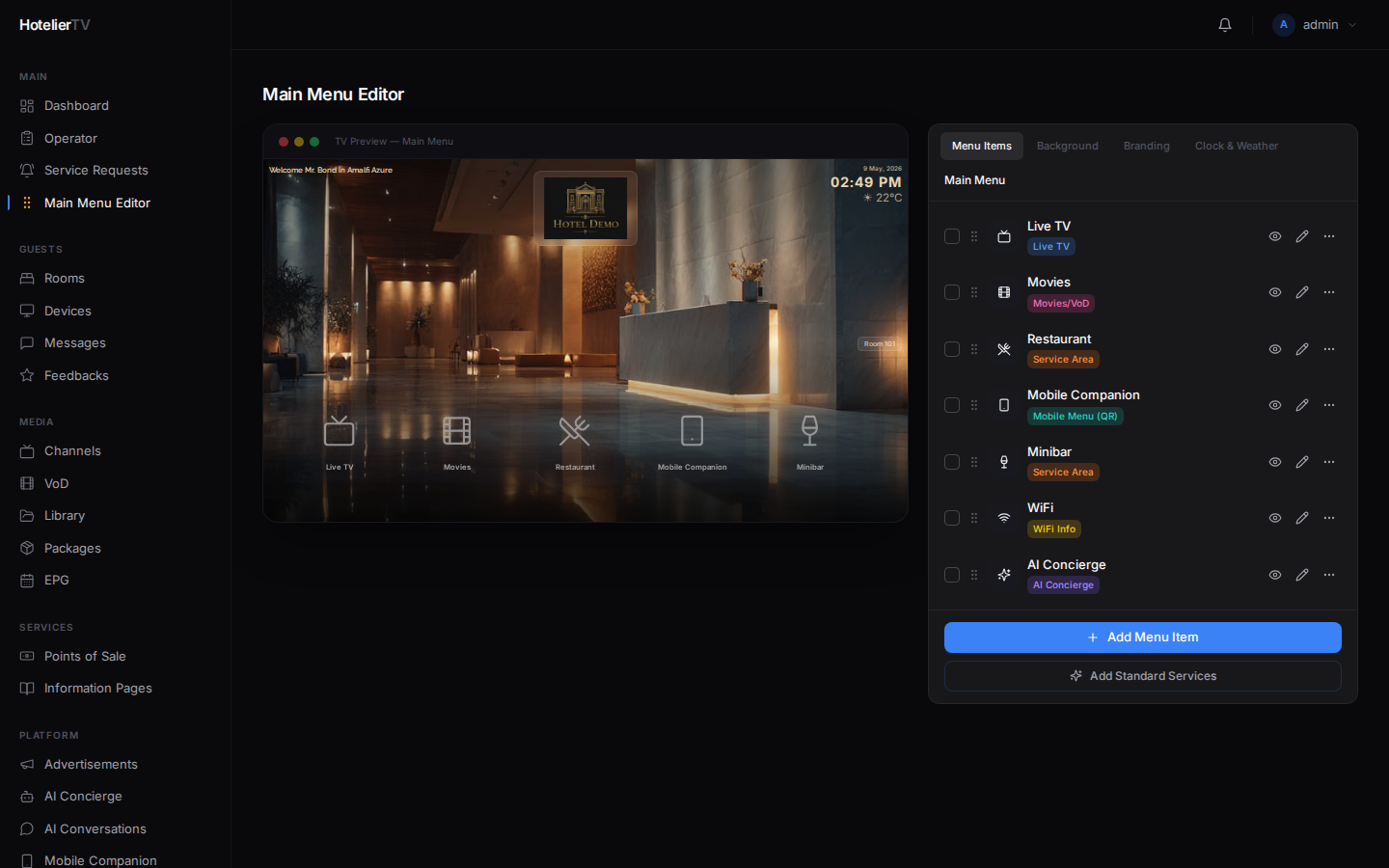
You'll see two panels:
- Left: the list of menu items (tiles).
- Right: a live TV preview that updates as you make changes.
A tab bar across the top lets you switch between Menu items and Screen design (background, welcome text, clock).
Step 2: Hide tiles you don't need
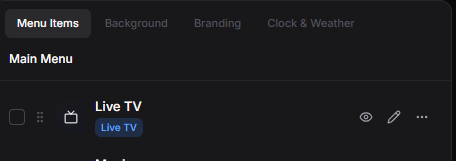
Each tile in the list has a small eye icon. Click it to toggle visibility. A tile with the eye crossed out is hidden from the TV but stays in your list — useful for seasonal items.
Step 3: Reorder tiles by dragging
Each row has a drag handle (six dots on the left). Click and hold it, then drag the tile up or down to change the order. The TV preview updates as you drag.
Tip: Put the most-used tiles first — usually Live TV, Information, Restaurant, Spa, AI Concierge, in that order.
Step 4: Edit a tile
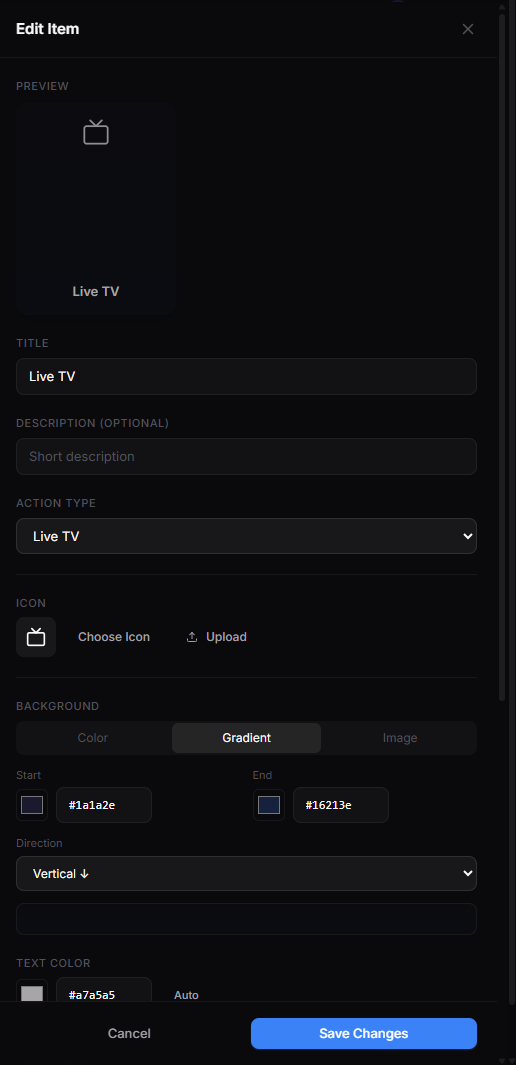
Click the pencil icon on a row to open the edit panel. You can change:
- Title — what the tile says (e.g. "Restaurant" or "Le Jardin").
- Description — a short subtitle (optional).
- Type — what happens when you click the tile. Common types: Live TV, Movies/VoD, Service Area (links to a restaurant/spa/store/info area you've created), App (Netflix, YouTube, etc.), WiFi Info, AI Concierge, Mobile Menu (QR), Wake-up Call.
- Icon — pick from a built-in library of 122 icons or upload your own.
- Background — solid color, gradient, or an image. The preview shows it instantly.
- Card size, font size, border radius — fine-tuning for visual polish.
- Show on TV — quick toggle.
Click [Save] at the top of the edit panel.
Step 5: Add a new tile
Click the [+ New item] button at the bottom of the menu list. The edit panel opens with default values. Fill in title, pick a type, save.
For more on specific tile types:
Step 6: Customize the screen design
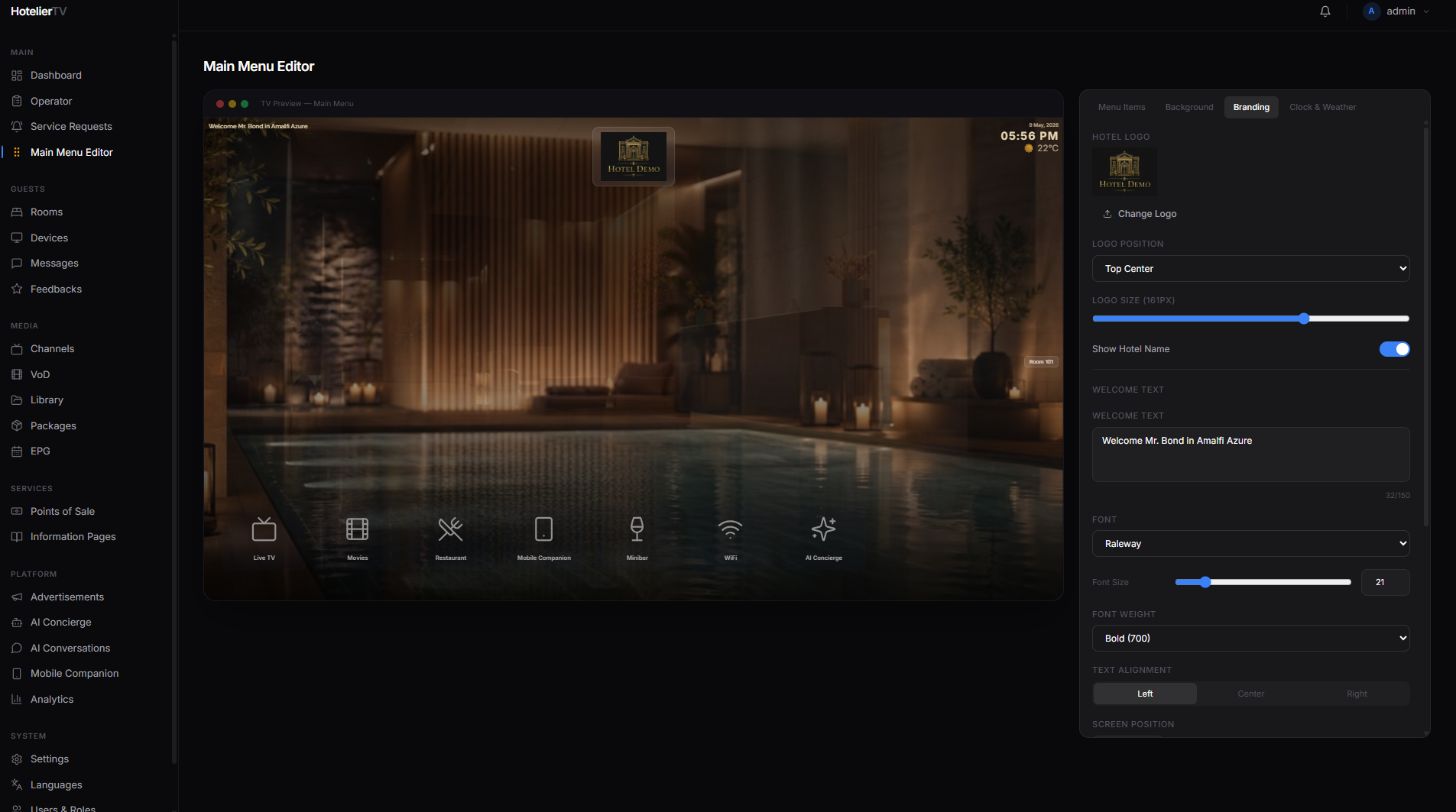
Switch to the Screen design tab at the top. Here you can:
- Change the background of the home screen (color, gradient, image, or slideshow).
- Set the welcome text ("Welcome, {{guest_name}}") and choose a font, size, position, and color.
- Show or hide the clock and pick a format (12h, 24h).
- Show or hide the weather widget (if Weather is configured in Settings).
- Show or hide the room number in a corner.
Click [Save] at the bottom of the design tab when you're happy.
What if it doesn't work?
Changes don't appear on the TV: TVs need a moment to refresh. Either wait a minute, or go to Devices, find the TV, click its three-dot menu, and pick Cache reload.
Drag-and-drop doesn't reorder: Make sure you're grabbing the dotted drag handle (left side of the row), not somewhere else.
A tile points to something I deleted (broken link): Open the tile's edit panel. The Type field will show a warning. Pick a new target or delete the tile.
Edit panel won't save: Title is required. Make sure it's not empty.