WiFi Information
Set up the WiFi tile on the TV so guests can connect their phone with one scan.
WiFi Information
What you'll learn: How to fill in your hotel WiFi details so the TV's WiFi tile shows the network name, password, and a QR code guests can scan to join automatically.
Time needed: 3 minutes.
Before you start
You'll need:
- Login access.
- Your WiFi network name (SSID).
- The WiFi password.
- The security type (usually WPA2; sometimes WPA3 or WEP; rarely Open).
Step 1: Open Settings → WiFi
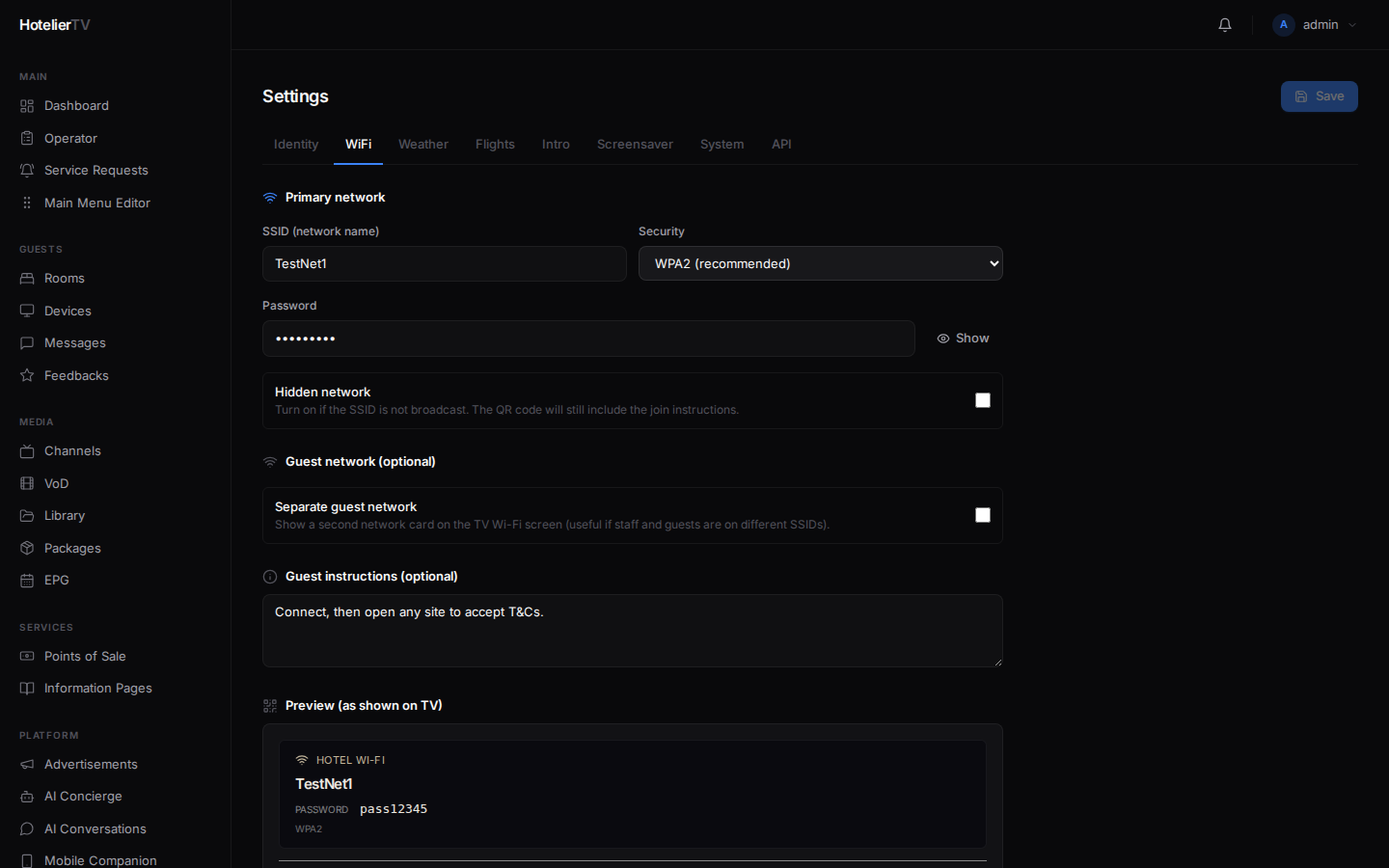
In the left sidebar, click Settings, then click the WiFi tab.
Step 2: Fill in the primary network
Under Primary network:
- SSID (network name) — exactly as it appears in your phone's WiFi list. Capitalization matters.
- Security — pick from the dropdown:
- WPA2 — the most common; pick this if unsure.
- WPA3 — modern routers.
- WEP — old equipment; avoid if possible.
- Open — no password (rare for hotels).
- Password — the WiFi password. Click the eye icon to show/hide.
- Hidden network — toggle on if your SSID is not broadcast publicly. The QR code still works.
Step 3 (optional): Set up a separate guest network
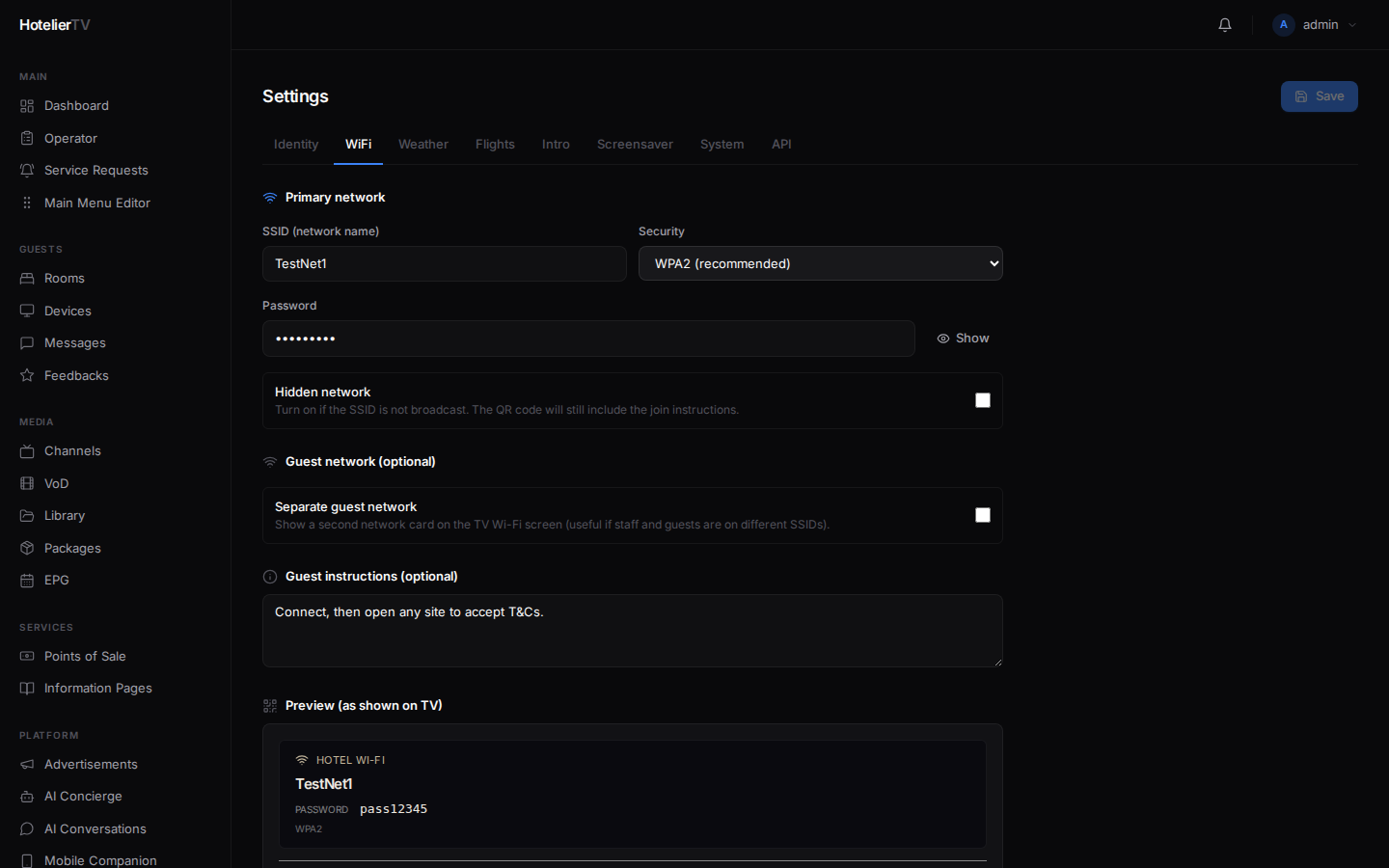
Under Guest network (optional), toggle Separate guest network if you have a different SSID for guests (e.g. staff is on Hotel-Staff, guests on Hotel-Guest).
When on, fill in the guest SSID, Security, and Password. Both networks will show on the TV WiFi screen as two cards.
If you have one network for everyone, leave this off.
Step 4 (optional): Add guest instructions
Under Guest instructions (optional), type any extra steps. Example:
"After connecting, open any website to accept the Terms & Conditions on the captive portal."
This text appears on the TV WiFi screen below the QR code.
Step 5: Check the preview
Scroll down to Preview (as shown on TV). It shows what guests will see — a card with your hotel WiFi info, plus a second card if you set up a guest network.
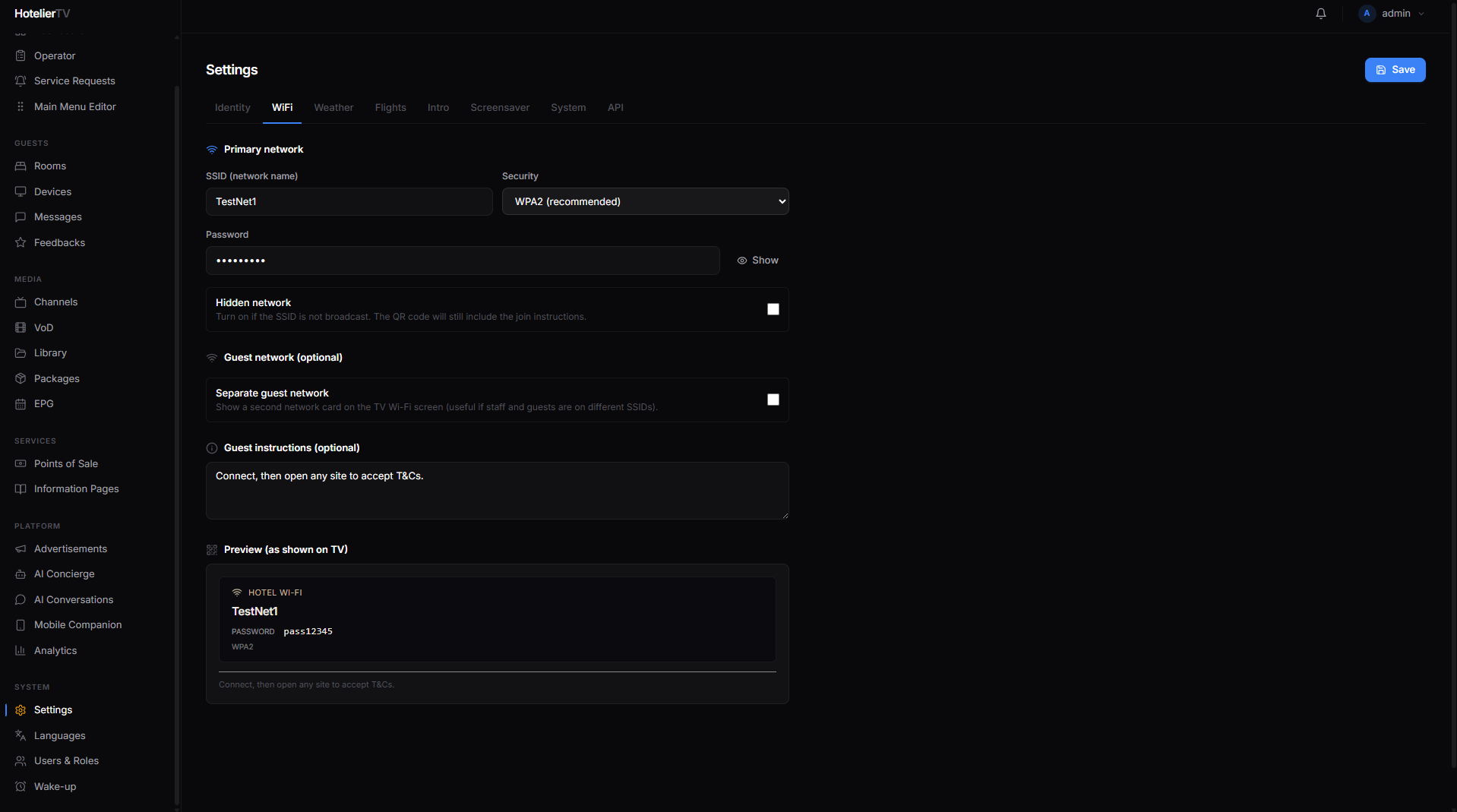
If something looks wrong, scroll back up and edit. The preview updates live.
Step 6: Save
Scroll up and click [Save] at the top right of the Settings page. Wait for the green "Saved" indicator.
Step 7: Make sure the WiFi tile is in the main menu
The system has a built-in tile type called WIFI. In Main Menu Editor, look for a tile of that type. If you don't have one:
- Click [+ New item].
- Set Type = WiFi Info.
- Title: "WiFi". Pick a wifi icon.
- Save.
Now the tile appears on the TV home screen. Tapping it shows the network info and QR code.
What if it doesn't work?
QR code scan shows wrong password:
- Double-check the password in the SSID field has no extra spaces.
- Make sure the security type matches what your router uses.
QR code doesn't trigger auto-join on iPhone or Android:
- WPA2 is the most reliable. WEP and "Open" sometimes don't auto-join.
- Hidden networks may need to be added manually on some devices.
WiFi tile is missing from the TV: Add a tile in Main Menu Editor with Type = WiFi Info.