Manage Knowledge Base
Teach the AI Concierge about your hotel by uploading documents or pasting text.
Manage Knowledge Base
What you'll learn: How to give the AI Concierge specific knowledge about your hotel — opening hours, room service menu, local attractions, policies — so it can answer guests accurately.
Time needed: 30 minutes for a starter knowledge base.
Before you start
You'll need:
- AI Concierge enabled. See Set Up AI Concierge.
- The text you want the AI to know — could be your existing hotel info pamphlet, FAQ document, or notes you write fresh.
How it works: When a guest asks a question, the system finds the most relevant chunks from your knowledge base and shows them to the AI as context. So the AI can quote your exact opening hours instead of guessing.
Step 1: Open the Knowledge base tab
Go to AI Concierge in the sidebar, then click the Knowledge base tab.
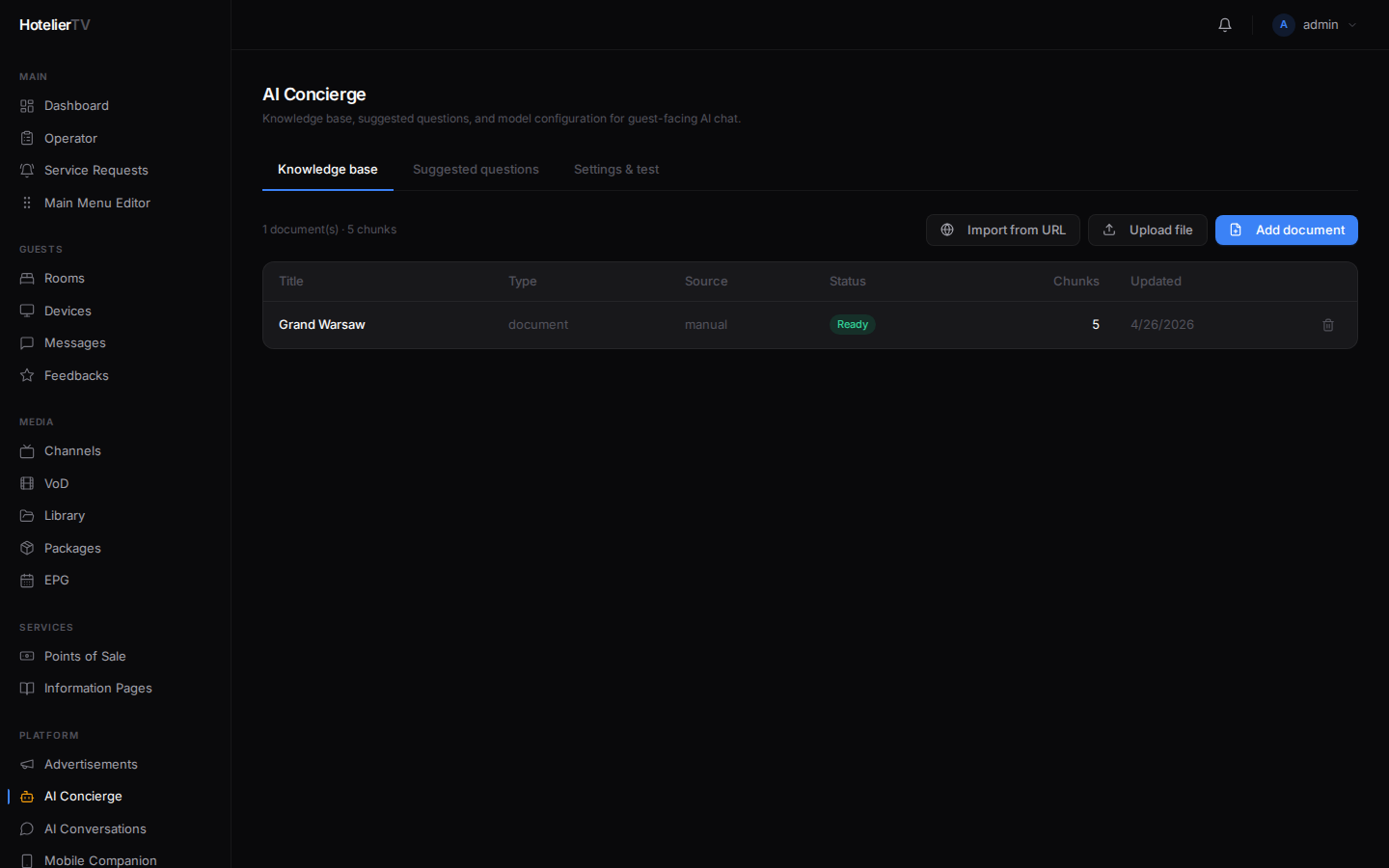
You'll see your current documents (empty if this is your first time). Each row shows a title, type, source, status, and chunk count.
Step 2: Add a document — three ways
Three options at the top right:
- [Add document] — paste in text directly.
- [Upload file] — upload a PDF, DOCX, or text file.
- [Import from URL] — pull content from a public web page (your hotel website, Wikipedia article about a landmark, etc.).
Option A: Paste text
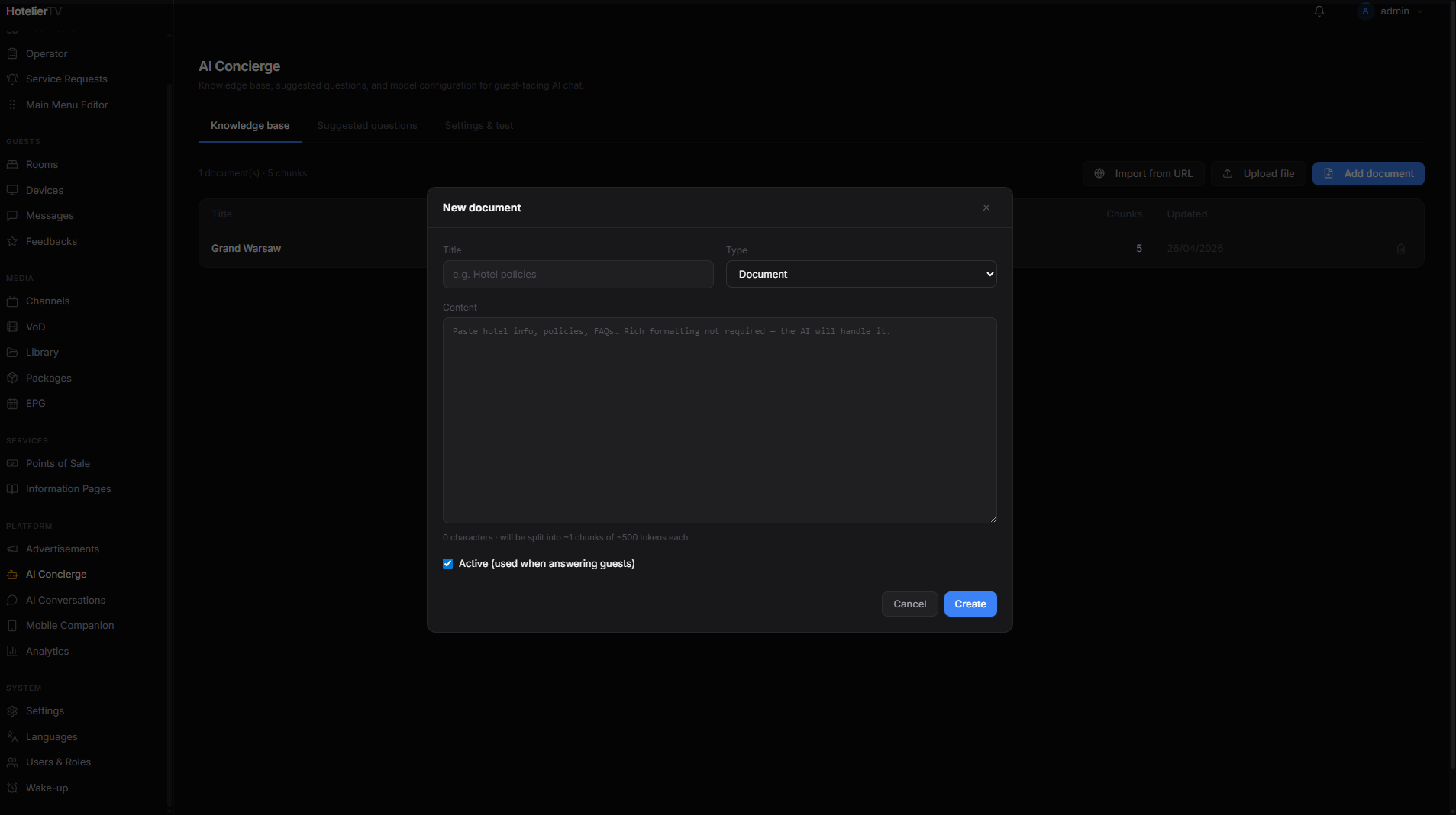
Click [Add document]. A dialog opens with:
- Title — e.g. "Hotel policies".
- Content — paste your text. Don't worry about formatting; the AI handles plain text.
Click [Save].
Option B: Upload a file
Click [Upload file], pick the file. The system extracts text from PDFs and DOCX files automatically.
Option C: Import from URL
Click [Import from URL], paste a web address. Useful for pulling content from your hotel's existing site or a tourism page.
Step 3: Wait for processing
After saving, the document appears in the list with status:
- Pending — queued for processing.
- Processing — the system is splitting it into chunks and creating embeddings.
- Ready — done, the AI can use it.
- Error — something went wrong (hover for the message).
Most documents finish in a few seconds. Big PDFs can take a minute.
Step 4: Verify with a test question
Switch to the Settings & test tab and use the chat box on the right to ask a question that should be answered by your new document. If the AI quotes your information, great. If not, the document might be too general — break it into smaller, more focused documents.
Tip: Smaller, focused documents work better than one giant "Everything about our hotel" document. Try one per topic: "Hotel policies", "Restaurant menus", "Spa services", "Local tours", etc.
What to put in the knowledge base
A good starter set:
- Hotel basics — name, address, check-in/out times, contact info.
- Restaurant info — name, hours, cuisine, dress code, reservation policy.
- Spa info — hours, treatments, pricing.
- WiFi and tech — SSID, how to connect, what to do if it doesn't work.
- Policies — pets, smoking, late checkout, cancellation.
- Local highlights — top 5 nearby attractions with directions and hours.
- Transport — taxi numbers, public transport, airport directions.
Editing or deleting
- Click any row to edit the document.
- Click the trash icon to delete it.
- Click [Reprocess] in the editor if you've changed the content and want fresh chunks.
What if it doesn't work?
Document stuck on "Processing": Refresh the page. If still stuck after 5 minutes, delete and re-add it.
Document status is "Error": Hover over the status badge for the error message. Most common: file format not supported (try PDF or plain text), or the source URL returned an error.
The AI ignores my document:
- It might not be "Ready" yet. Wait until status is green.
- The document might be too long and unfocused. Split into smaller, topic-focused docs.
- The guest's question might not match keywords in the document. Add more synonyms / phrasings.