Send Messages to Guests
Send a message to one room, all rooms, or trigger an emergency alert visible on every TV.
Send Messages to Guests
What you'll learn: How to send a written message to one guest's TV, broadcast to all rooms, and how to use the emergency-alert feature for genuine emergencies.
Time needed: 1 minute per message.
Before you start
You'll need:
- Login access.
- The TVs in target rooms must be paired and online.
Three kinds of messages
The system supports three priority levels:
- Normal — a friendly message that pops up on the TV. Guest can dismiss it.
- Important — same as normal but visually emphasized (amber).
- Emergency — flashing red banner shown on every TV, won't disappear until you deactivate it. Use this only for real emergencies — fire alarm, gas leak, evacuation.
Step 1: Open the Messages page
In the left sidebar, under GUESTS, click Messages.
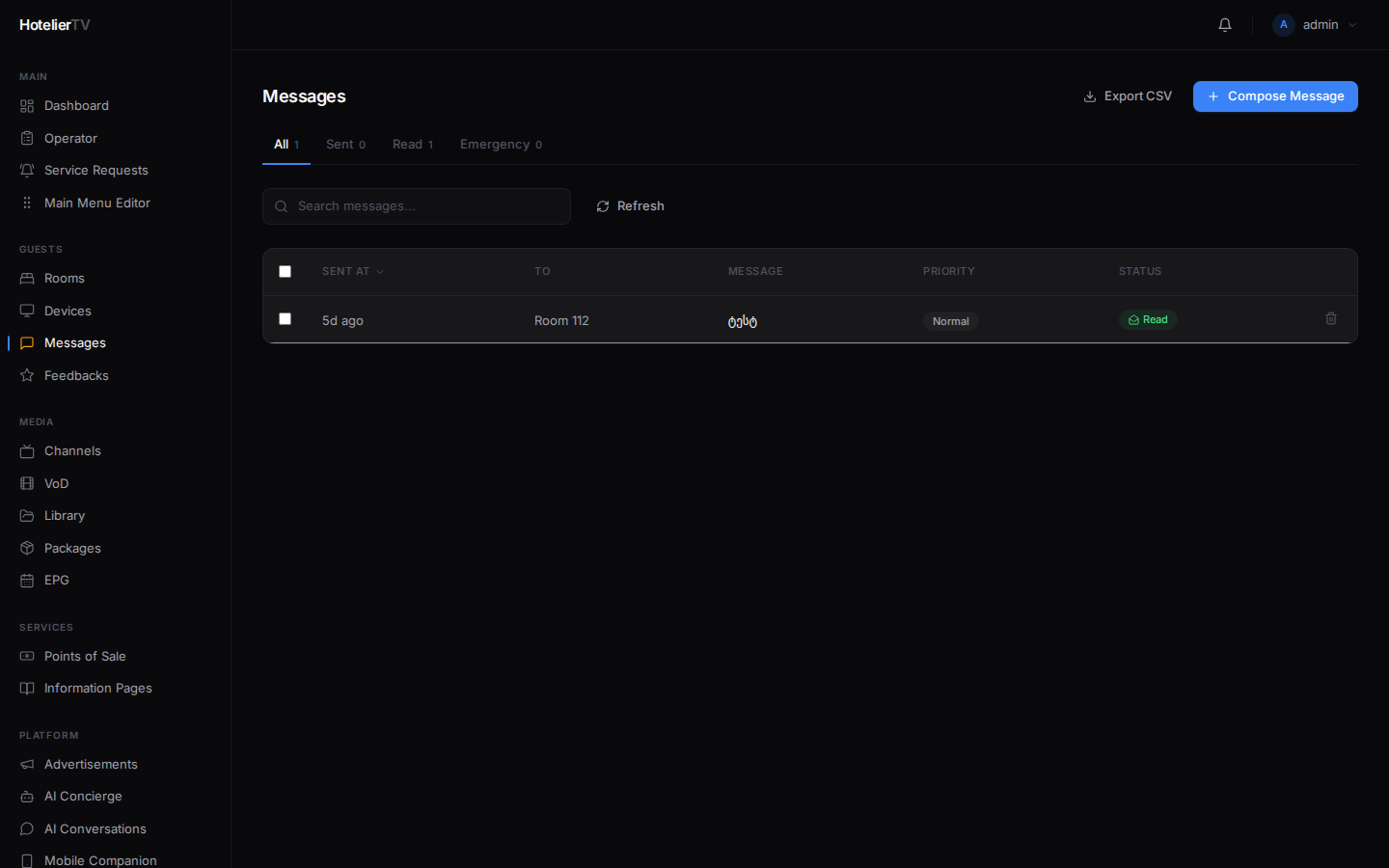
You'll see all sent messages with tabs to filter:
- All — every message.
- Sent — sent but not yet marked read by the guest.
- Read — the guest has dismissed/seen it.
- Emergency — emergency alerts only.
Step 2: Send a normal or important message
Click [Compose Message] in the top right.
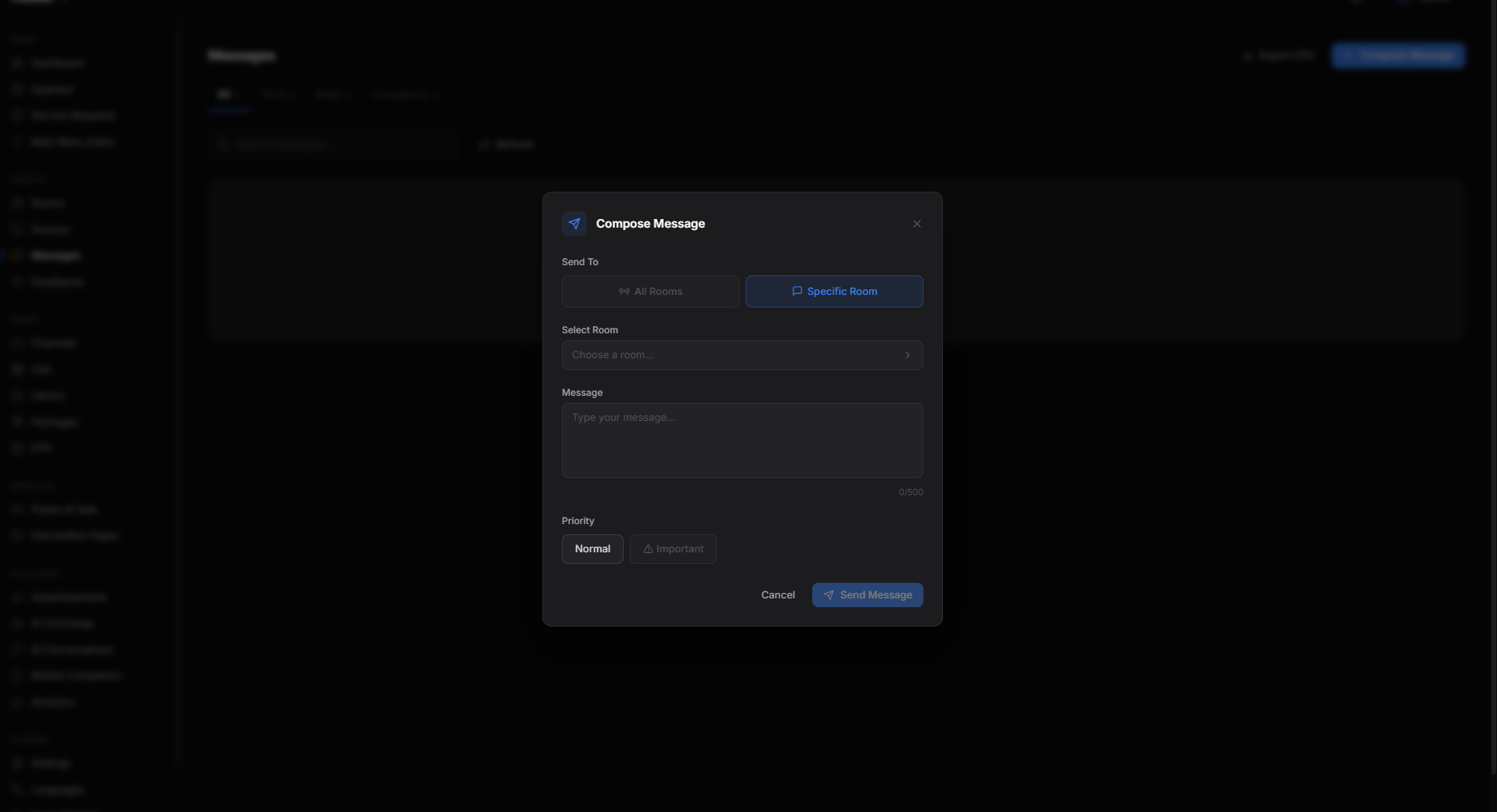
Fill in:
- To — pick a specific room from the dropdown, or pick All Rooms (Broadcast) to send to everyone.
- Message — type the text. There's no length limit, but keep it short for readability on a TV.
- Priority — Normal or Important.
Click [Send].
The message appears on the target TV(s) within seconds.
Step 3: Send a quick message from a specific room
Faster for a single guest:
- Go to Rooms, click the room.
- In the side panel footer, click [Message].
- Type the message, click [Send].
Step 4: Sending an emergency alert
Emergency alerts are different. They override the TV display with a red flashing banner. They stay until you deactivate them.
- Go to Messages, switch to the Emergency tab.
- Type the emergency content.
- Click [Activate] — the system asks you to confirm.
Or, faster, from the Rooms page header click the red [Emergency] button and write your message there.
When the emergency is over, click [Deactivate All] to clear it from every TV.
Important: Don't use Emergency for fire-drill announcements unless it's an actual fire. Guests will lose trust in the alert if it's used for non-emergencies.
Step 5: Export message history
For audits or compliance, click [Export CSV] at the top of the page. You'll get a CSV with date, recipient, message, priority, and read status.
What if it doesn't work?
Message says "Sent" in admin but didn't appear on TV:
- TV is offline. Check Devices for the room.
- TV has stale cache. Use Devices → Cache reload for the room's device.
Emergency alert won't go away after deactivation:
- Reload the affected TVs (full reboot if needed) — emergency alerts are designed to be very persistent.
Bulk-deleting old messages: Use the checkboxes to select messages, then Delete Selected in the bottom bar.
Guest didn't see the message but it's marked "Read": "Read" means the TV's app marked it as read after some time on screen — not necessarily that the guest looked at it. If the message is critical, follow up with reception.