First Login
Sign in to your HotelierTV admin panel for the first time.
First Login
What you'll learn: How to sign in to the HotelierTV admin panel — the place where you set up everything guests see on their TVs.
Time needed: About 1 minute.
Before you start
You'll need:
- The web address of your admin panel (something like
your-hotel.cott.tv). Your account manager sent it to you when your hotel was set up. - The email address and password you were given.
Step 1: Open the admin panel in a browser
Open Chrome, Firefox, Safari, or Edge. Type your admin panel address in the address bar and press Enter.
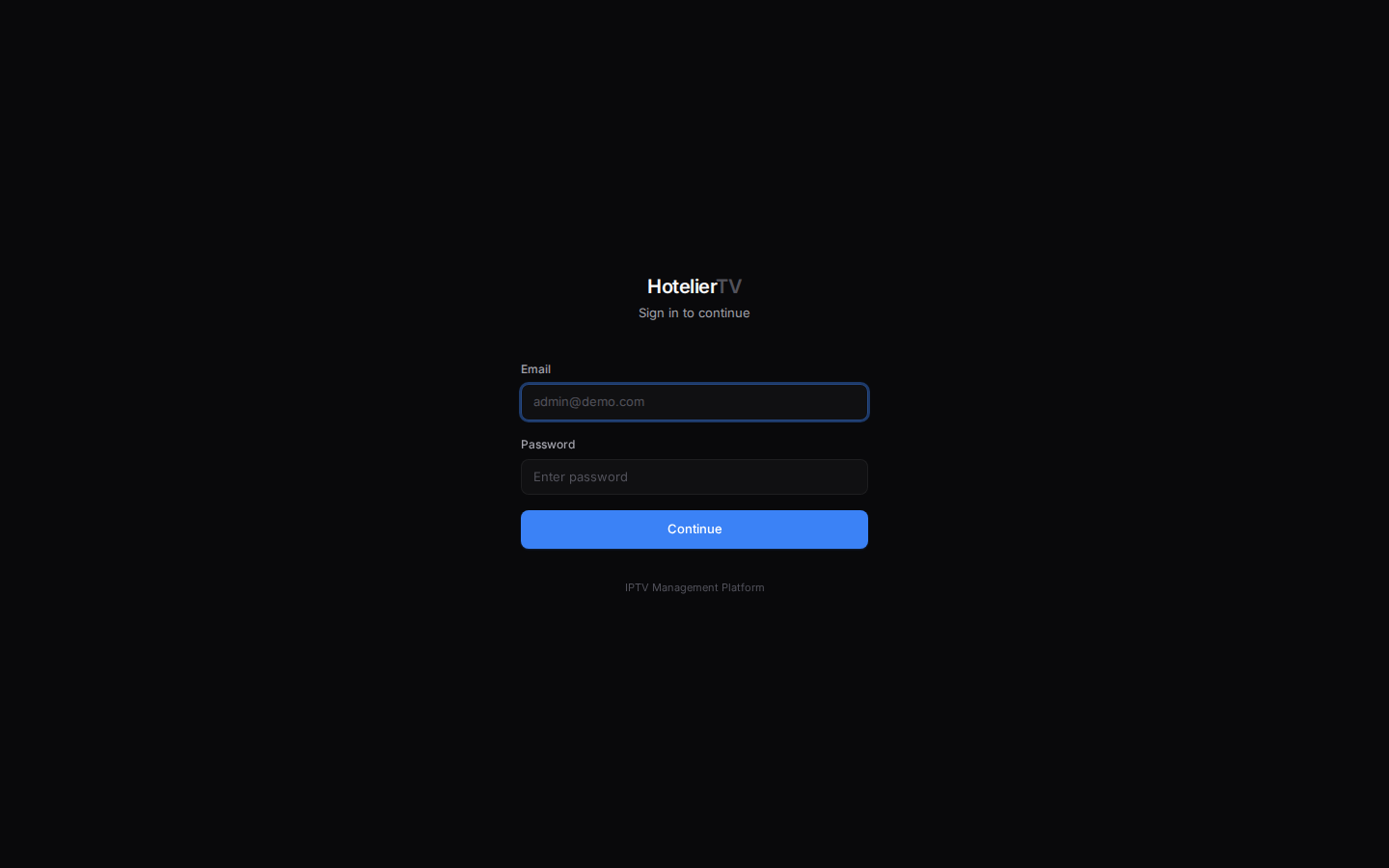
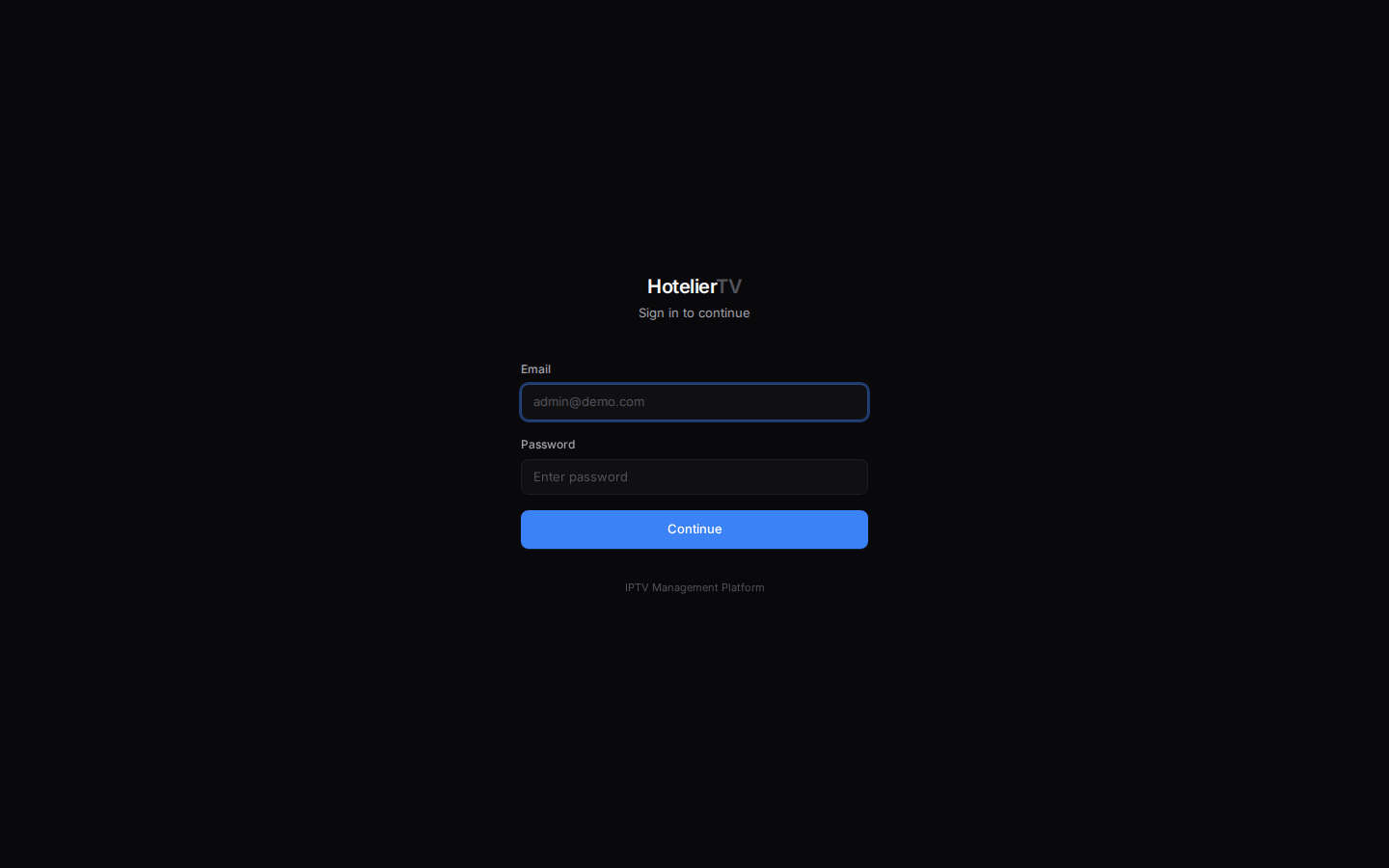
You'll see a sign-in page that says HotelierTV at the top, with "Sign in to continue" below it.
Step 2: Enter your email and password
Type your email in the Email field. Type your password in the Password field.
Tip: If your hotel was created from a demo, the email is usually
[email protected]and the temporary password was sent in the welcome email. If you can't find it, ask whoever set up your hotel.
Step 3: Click Continue
Click the [Continue] button.
If everything is correct, you'll land on the Dashboard — a screen with cards showing online TVs, occupied rooms, today's orders, and recent activity. Welcome.
What if it doesn't work?
"Login failed" or a red error box: Your email or password is wrong. Check for typos. Email is not case-sensitive, but passwords are. Make sure Caps Lock is off.
The page won't load at all: Check your internet connection. Try refreshing (Ctrl+R on Windows, Cmd+R on Mac). If that doesn't help, the address might be slightly off — double-check it against the welcome email.
You don't have a password yet: Contact whoever set up your hotel — usually your COTT account manager. They'll send you a fresh invite.