Add Movies (VoD)
Build a movie catalog guests can watch from the TV — free or paid.
Add Movies (VoD)
What you'll learn: How to add movies to your Video-on-Demand library. You can add titles one by one, or import them in bulk from TMDB (The Movie Database).
Time needed: 1–2 minutes per movie if entering manually; 5 minutes for a TMDB-assisted batch.
Before you start
You'll need:
- Login access.
- The streaming URL for each movie (an HLS
.m3u8URL or MP4). Your media partner or content provider gives you these. - Optionally: a free TMDB API key from themoviedb.org for auto-filled posters, descriptions, and ratings.
Step 1: Open the VoD page
In the left sidebar, under MEDIA, click VoD.
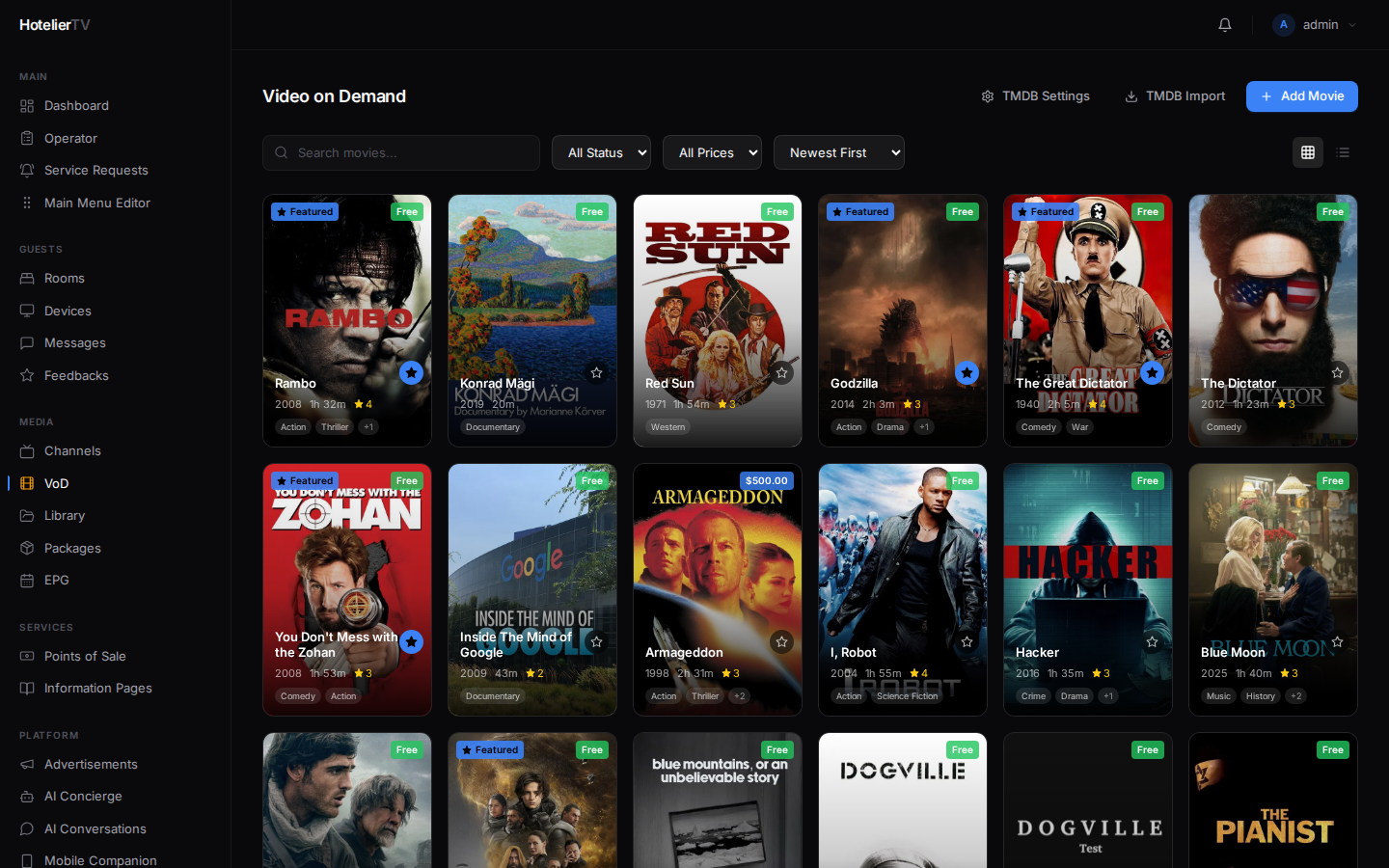
Step 2 (one-time): Configure TMDB (optional but recommended)
If you want auto-filled metadata, click [TMDB Settings] in the page header. Paste your TMDB API key and save.
[VERIFY: Confirm exact label of the TMDB key field — code shows "TMDB Settings" in the header but the dialog content was not read.]
You only need to do this once. After that, TMDB Import will pre-fill posters, descriptions, ratings, year, runtime, and cast for any movie you search for.
Step 3: Add movies one by one
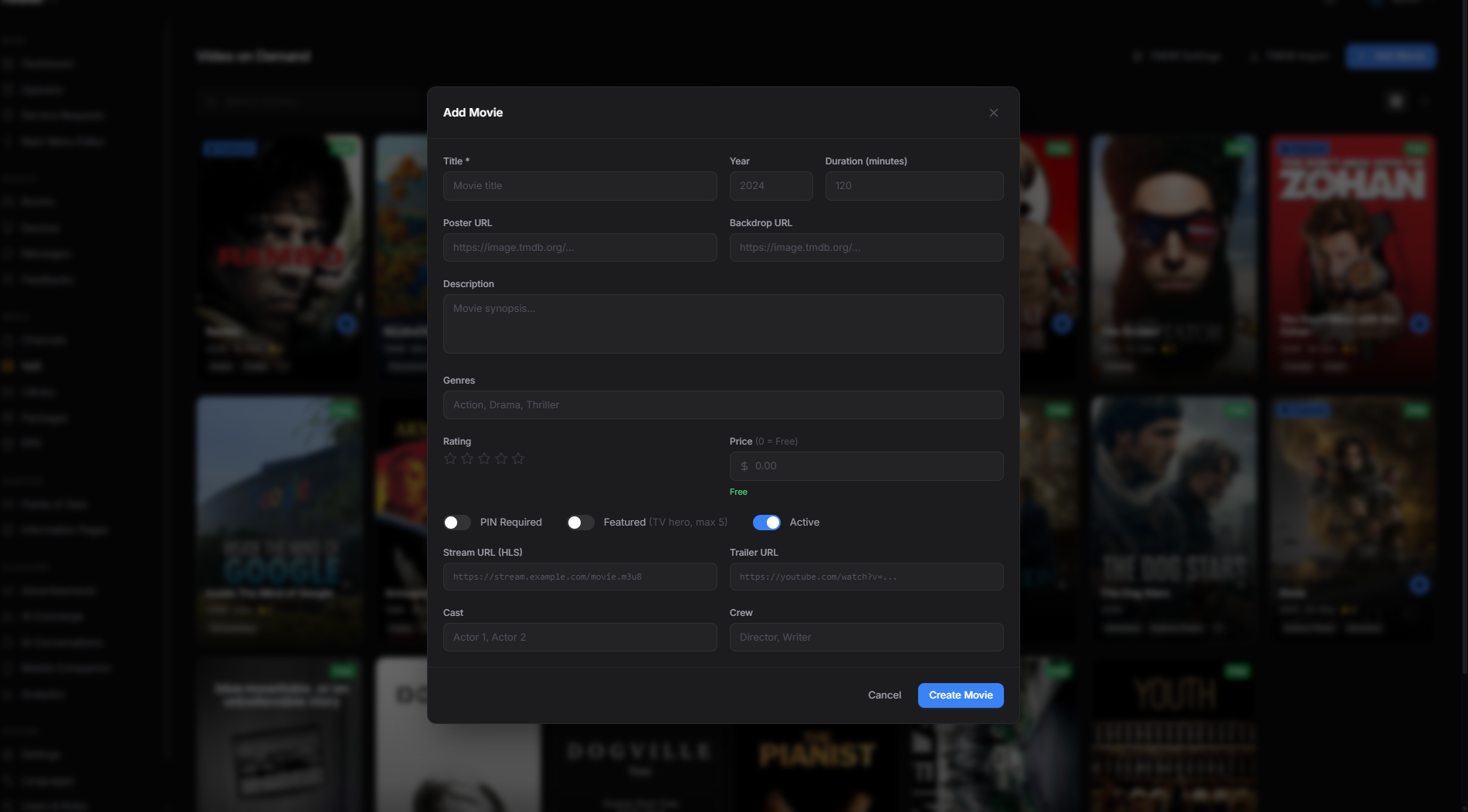
Click [Add Movie] at the top right.
A form opens with these fields:
- Title (required) — e.g. "Inception".
- Year — release year.
- Duration — in seconds (e.g. 8880 for 2h 28m). The page shows a friendly preview like "2h 28m".
- Poster URL — link to a portrait poster image.
- Backdrop URL — landscape hero image.
- Stream URL (required) — the HLS or MP4 URL.
- Trailer URL — optional preview.
- Description — synopsis text.
- Rating — your hotel's editorial rating, 1–5 stars (clickable).
- Price — leave 0 for free, or set a price for pay-per-view.
- Genres — comma-separated.
- Cast / Crew — text fields.
- PIN required — toggle. If on, guests must enter a PIN before watching (good for adult content).
- Featured — toggle. Featured movies show in a hero carousel.
- Active — toggle. Off = hidden from guests.
Click [Save].
Step 4: Or use TMDB Import for bulk
Click [TMDB Import] at the top of the page.
Search for a title — the dialog shows TMDB results. Click the ones you want, then Import. The system creates VoD entries with everything filled except the Stream URL (TMDB doesn't know about your specific stream). Open each imported title afterward and paste the stream URL.
Step 5: Make a "Movies" tile on the home screen
The system already has a MOVIES menu type. In Main Menu Editor:
- Click [+ New item].
- Set Type to Movies/VoD.
- Pick a title, icon, background. Save.
Guests now see Movies on the home screen, which opens the full VoD catalog.
What if it doesn't work?
Movie added but won't play on the TV:
- Stream URL is wrong. Try opening it in VLC on your computer to verify.
- HLS URL must be
.m3u8. MP4 should end in.mp4. Other formats may not work.
Posters look stretched: TMDB posters are portrait (2:3). If you upload your own, match that aspect ratio.
TMDB import won't find movies:
- Check your API key in TMDB Settings.
- Make sure you have an internet connection from the admin server (TMDB is queried server-side).
"PIN required" doesn't trigger on TV: The PIN feature uses the TV-side parental PIN, configured per-room. [VERIFY: confirm whether parental PIN is set per-room or per-tenant — code surface area not fully traced.]