Enable Languages
Add the languages your guests can switch between on their TV.
Enable Languages
What you'll learn: How to choose which languages your guest TV interface supports — and which one is the default.
Time needed: 3 minutes.
Before you start
You'll need:
- Login access.
- A clear list of languages you want to support. Most hotels start with 2–4: their local language, English, and the top 1–2 source markets.
Step 1: Open the Languages page
In the left sidebar, under SYSTEM, click Languages.
The page has two tabs at the top: Supported languages and Translations. The Supported languages tab is what you want for now.
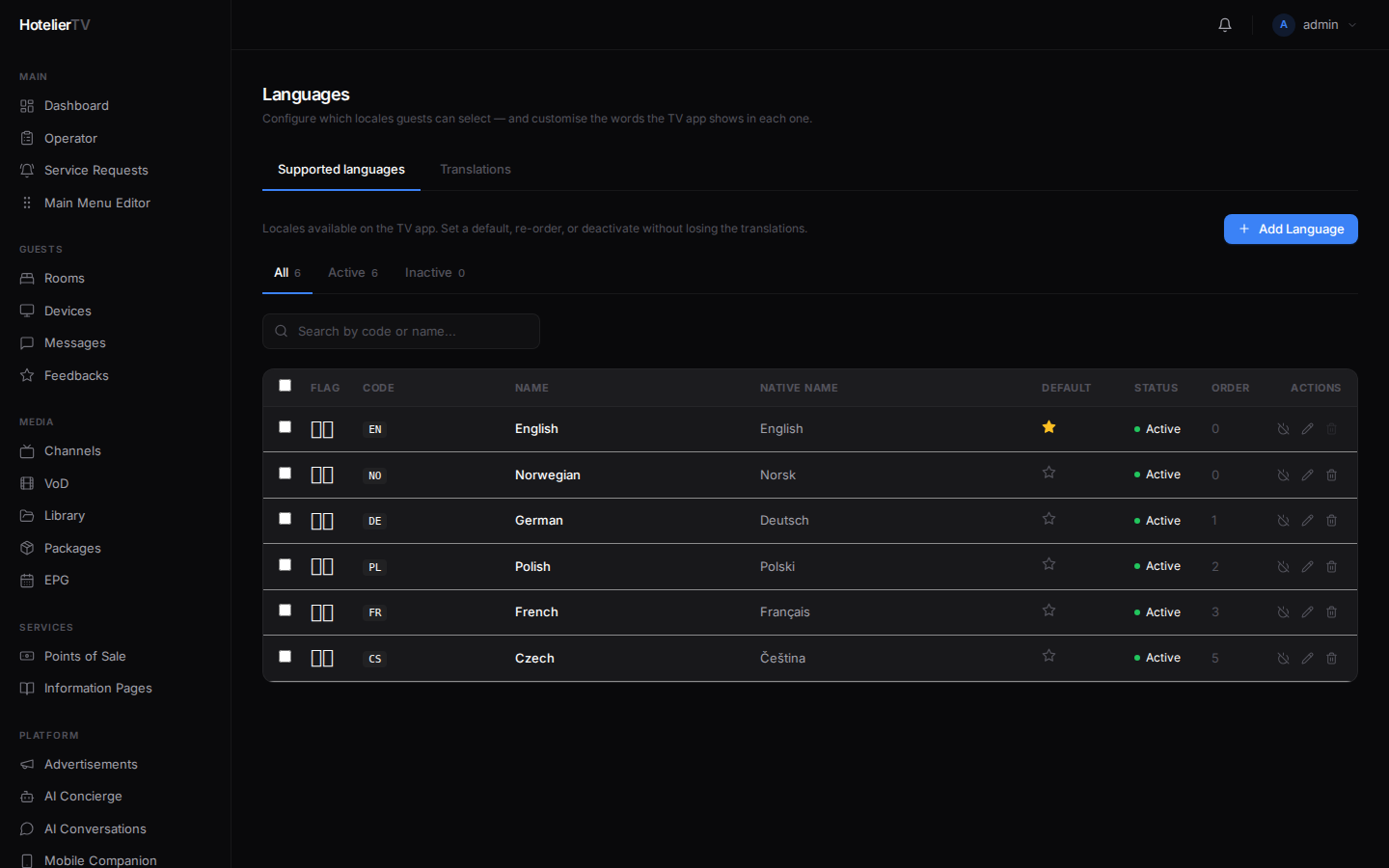
Step 2: Add a language
Click the [+ Add language] button in the top right.
A picker shows 34 preset languages with flags (English, German, French, Spanish, Italian, Portuguese, Polish, Russian, Arabic, Chinese, Japanese, etc.). Pick the one you want.
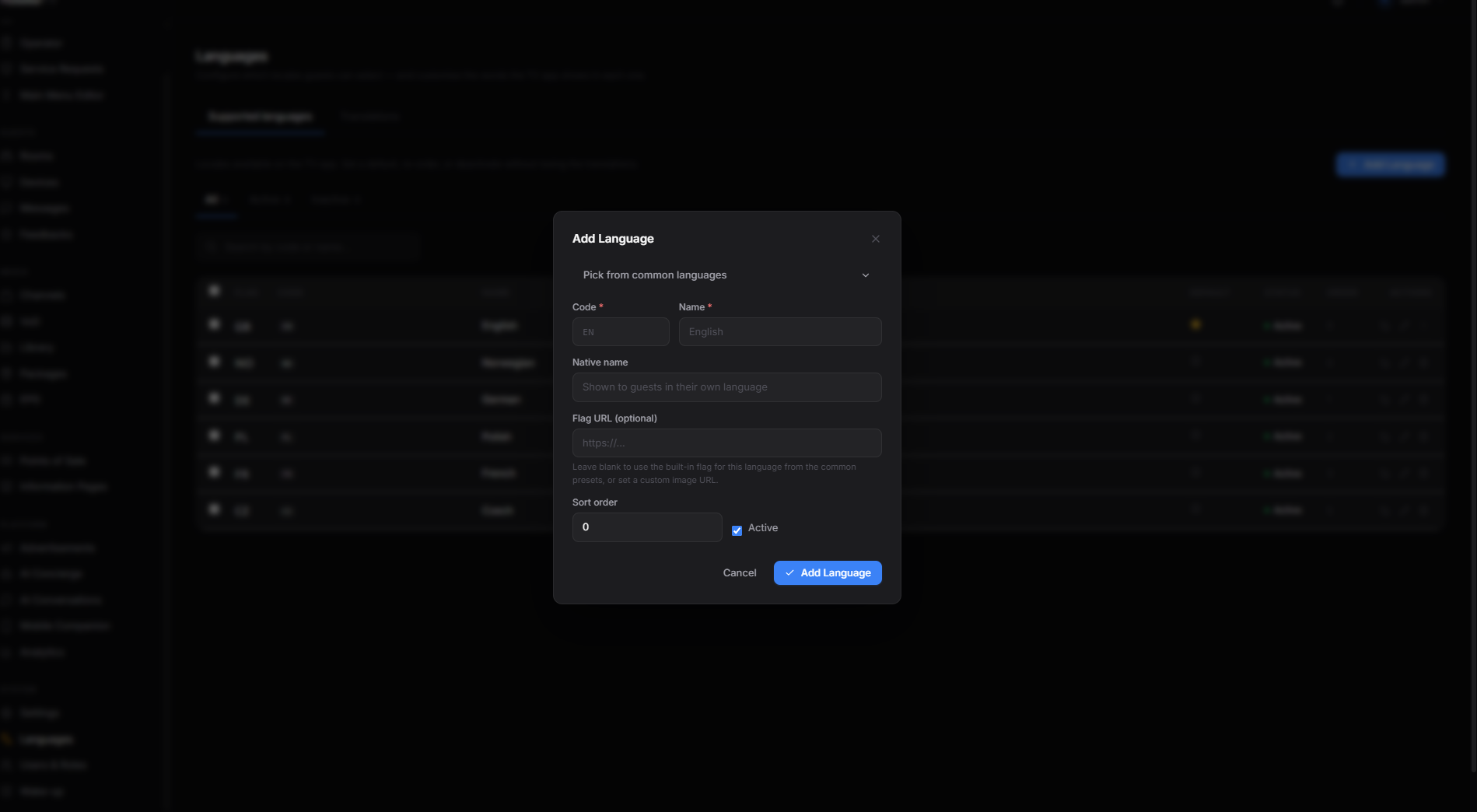
The language is added to your list and turned on (active).
Repeat for each language you want.
Step 3: Set the default language
Each row in the language list has a star icon. Click the star next to the language you want as the default. The starred language is the one new TVs and new guests start with.

Tip: Pick the language most of your guests speak first. They can change it themselves on the TV from the Language tile in the main menu.
Step 4: (Optional) Customize the wording
Switch to the Translations tab. Here you can override the default phrases the TV interface uses — for example, change "Welcome" in English to "Hello", or fix a translation you don't like in another language.
This is optional. The defaults are professionally translated and work fine for most hotels. Skip this unless you have a specific reason.
To export your custom translations, click [Download]. To import a translations file (handy when migrating between hotels), click [Upload].
Step 5: Make sure the Language tile is in the main menu
So guests can switch languages, the main menu needs a Language tile.
- Go to Main Menu Editor.
- Look for a tile of type Language. If it exists, you're done.
- If not, click [+ New item], set Type = Language, give it a title (e.g. "Language"), pick a globe icon, save.
What if it doesn't work?
The language doesn't appear on the TV:
- Check that the language is Active in the list (toggle on the row).
- Reload the TV cache: Devices → device → Cache reload.
I added the wrong language and want to remove it: You can't delete the default language. Set a different language as default first (click its star), then delete the unwanted one.
Some translations are missing or look weird: Switch to the Translations tab and edit them.