Add Your First Room
Add a room to your hotel TV system in under 2 minutes.
Add Your First Room
What you'll learn: How to add a single room (like "Room 101") to your hotel system. Once it's added, you can connect a TV in that room.
Time needed: 2 minutes per room.
Before you start
You'll need:
- Login access to your admin panel. See First Login.
- The room number (the number on the door — like "101" or "204A").
- Optionally: which floor it's on, and what type of room it is (Standard, Deluxe, Suite, Presidential).
Step 1: Open the Rooms page
In the left sidebar, under GUESTS, click Rooms.
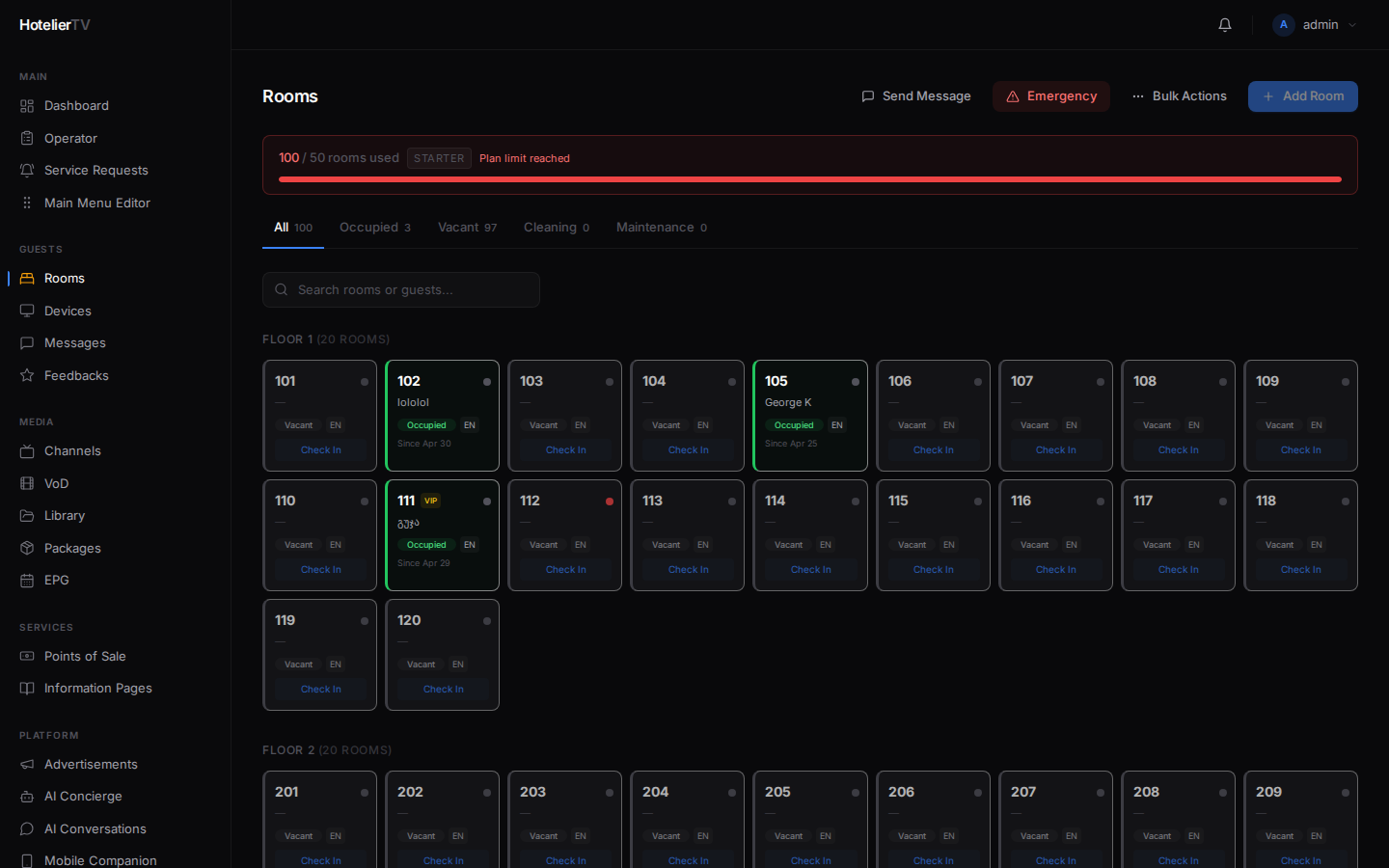
You'll see a list of rooms grouped by floor (or an empty page if this is your first time).
At the top right of the page, there's a small banner showing how many rooms your plan allows: e.g. "5 / 50 rooms used · STANDARD". Keep an eye on it as you add rooms.
Step 2: Click Add Room
In the top right corner of the page, click the [Add Room] button.
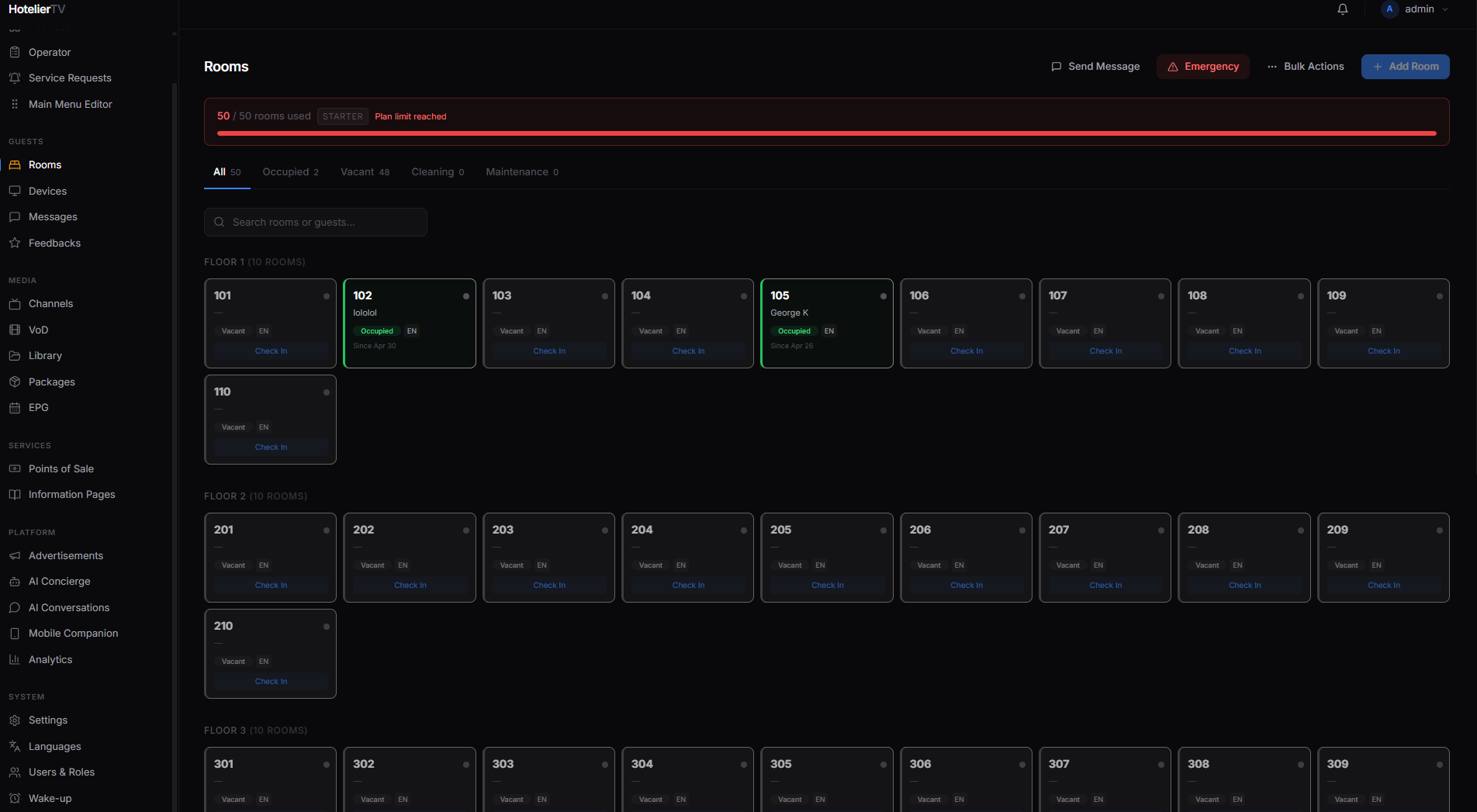
A small dialog opens with two tabs at the top: Single Room and Bulk Create. Make sure Single Room is selected.
Step 3: Fill in the form
You'll see these fields:
- Room Number (required) — type the number on the door. Examples:
101,204A,B12. - Floor (required) — type the floor number. Defaults to
1. - Type — pick from the dropdown: Standard, Deluxe, Suite, or Presidential.
- Package (optional) — leave as "— No package —" unless you've already created a package. (Packages let you bundle premium channels, breakfast, late checkout, etc. with certain rooms. You can always add this later.)
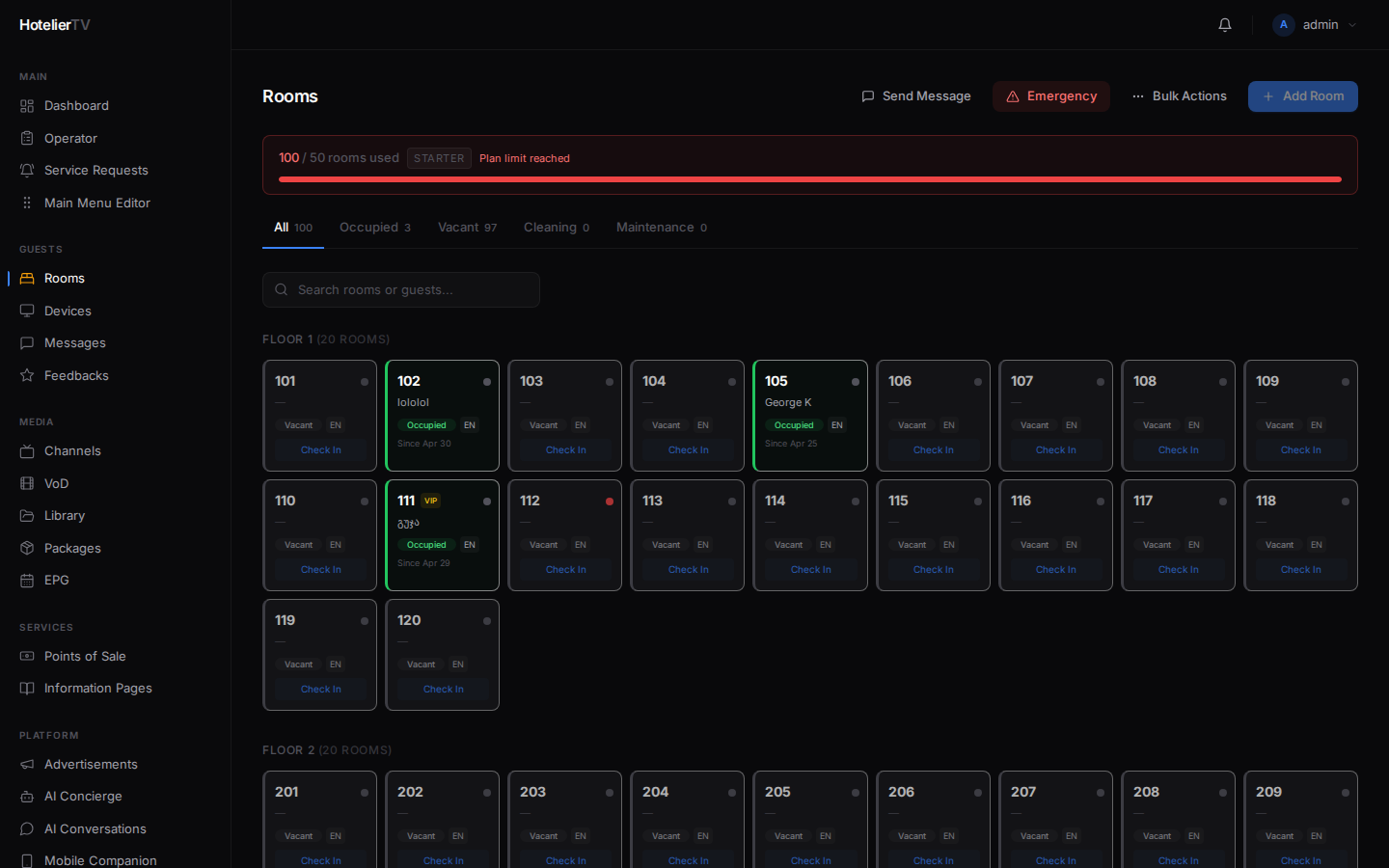
Step 4: Click Add Room
Click the blue [Add Room] button at the bottom right of the dialog.
The room appears in your list, grouped under the floor you chose. It starts with the status Vacant (grey) and a small Check In button so you can mark a guest as checked in later.
What if it doesn't work?
"Room limit reached: 50/50 used": You've hit your plan's limit. Delete a room you don't need, or contact COTT support to upgrade your plan.
The Add Room button is greyed out before I even click it: Same reason — your plan is at the limit. Hover over the button to see the tooltip.
The form rejects my room number: You probably already have a room with that number. Each number must be unique. Try a different one, or delete the old room first.
The page won't load: Refresh (Ctrl+R / Cmd+R). If still broken, sign out and back in.