Connect a TV to a Room
Pair a hotel TV with a specific room using a 6-digit PIN.
Connect a TV to a Room
What you'll learn: How to make a TV "belong" to a specific room — so when a guest in that room watches it, they see their welcome screen, their messages, their package channels.
Time needed: 5 minutes per TV.
Before you start
You'll need:
- The room must already exist in your admin panel. See Add Your First Room.
- The TV in that room must be powered on, connected to the internet, and showing a screen that asks for a registration PIN.
- Two people make this faster: one in front of the admin panel, one in front of the TV. (Or one person who's quick on their feet.)
Step 1: Open the Rooms page
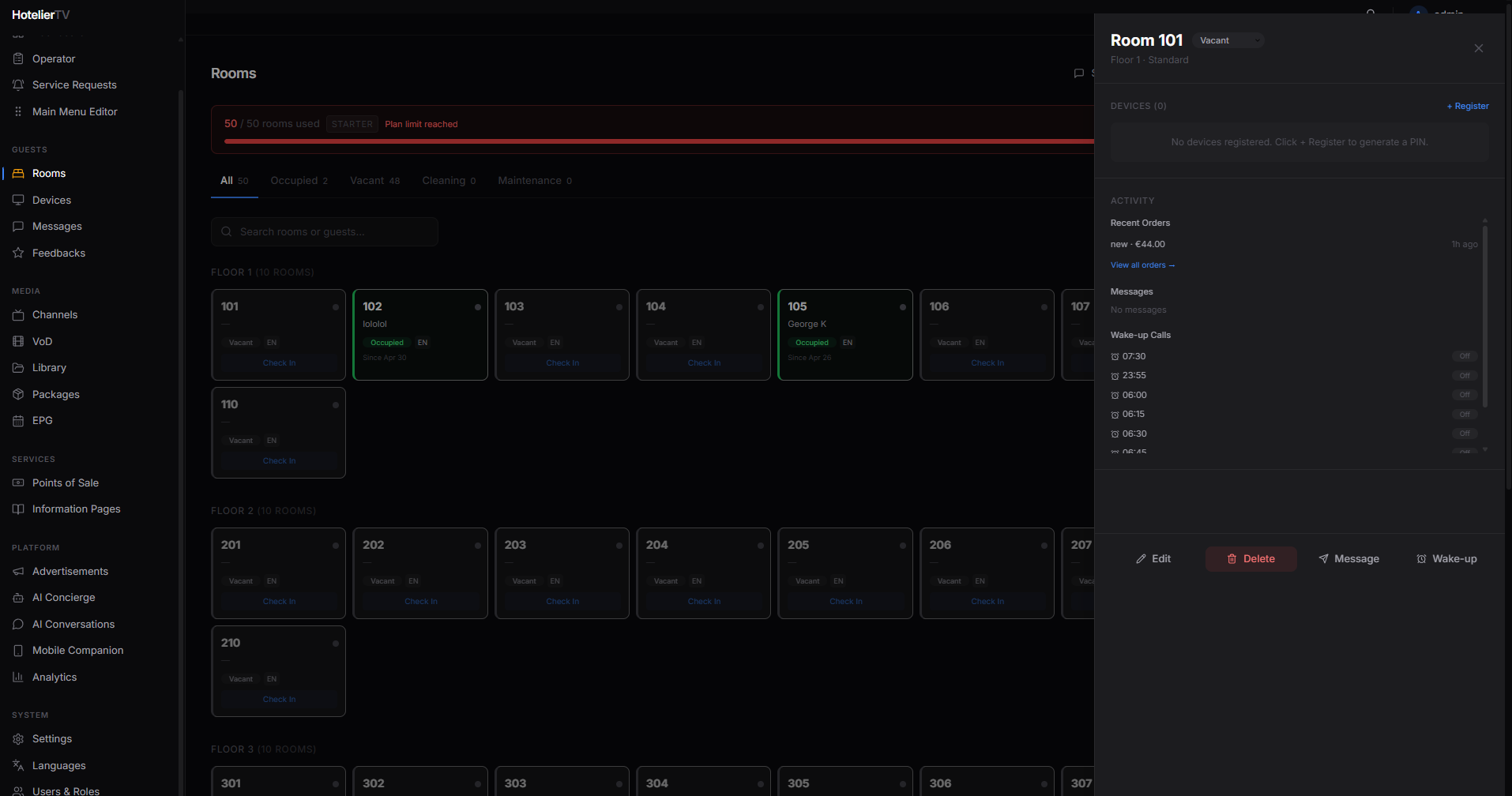
In the left sidebar, click Rooms. Find the room card for the TV you're pairing — say, Room 101.
Click the room card. A side panel slides in from the right showing room details.
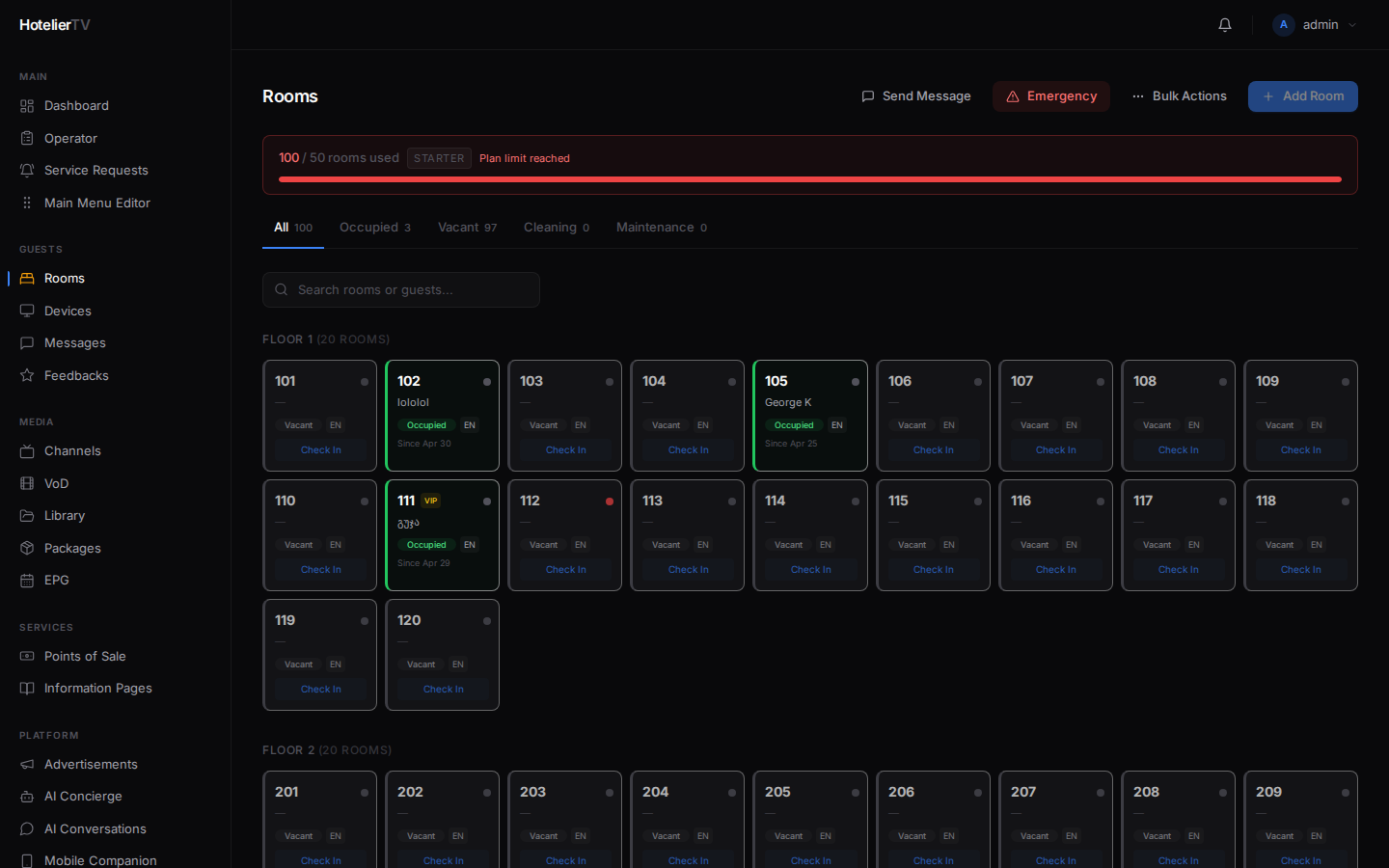
Step 2: Click + Register in the Devices section
In the side panel, scroll down to the Devices section. On the right side of that section header, click the small + Register link.
A new dialog opens titled Register Device — Room 101, showing a large 6-digit PIN like 483921. Below the PIN you'll see a countdown — "Expires in 9:58".
Step 3: Type the PIN on the TV
Walk to the room (or have someone else there) and type the 6-digit PIN on the TV's pairing screen.
Tip: If you're moving fast, click the copy icon next to the PIN to copy it to your clipboard. You can paste it into a phone message to send to whoever's at the TV.
The TV should accept the PIN within a few seconds and switch to the hotel's welcome screen. That's it — the TV is now paired.
Step 4: Confirm in the admin panel
Back in the admin panel, the Devices section of the room panel now shows the new device with a green dot meaning "online".
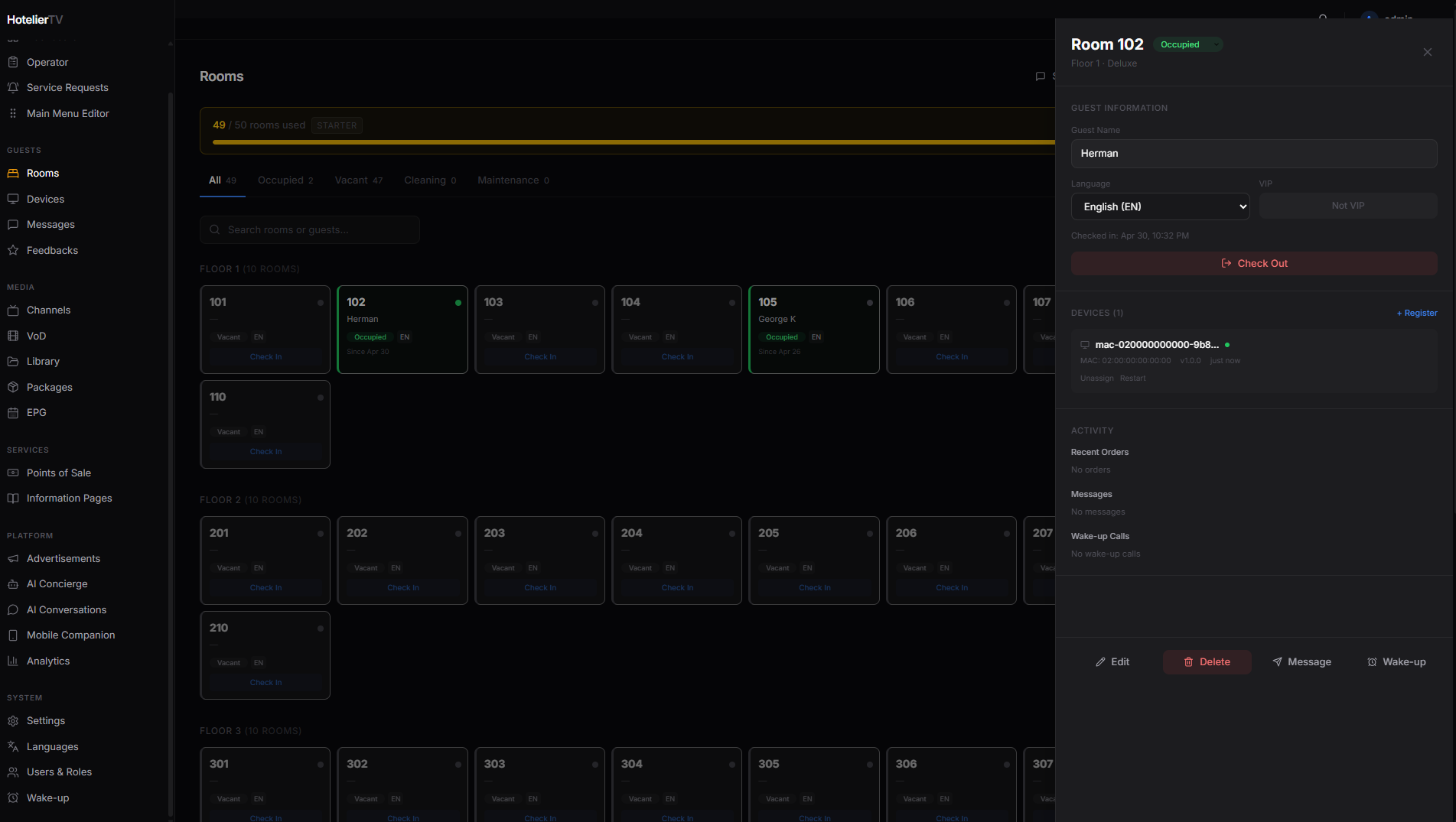
You can close the room panel — pairing is done.
What if it doesn't work?
The PIN expired before I could type it: Click [New PIN] in the dialog to generate a fresh one. PINs are valid for 10 minutes.
The TV says "Invalid PIN": Two possibilities:
- You typed it wrong. PINs are six digits. Try again.
- The PIN is for a different room. Each PIN is bound to one room — don't try to reuse one across rooms.
The TV doesn't have a pairing screen, just a logo or "Loading…": The TV app may not be running. Restart the TV. If still no pairing screen, the app may need to be installed by your IT team. See Troubleshoot TV Pairing.
The TV pairs, but shows "Vacant" content (no guest): That's normal. Pairing is one thing; checking a guest in is another. To check a guest in, click the room card → set status to Occupied or click Check In and enter the guest's name.
The PIN dialog won't open / spinner forever: Close and reopen the dialog. If still broken, refresh the page and try again.