Add an Information Page
Add hotel facility info, local attractions, and city guides for guests to browse.
Add an Information Page
What you'll learn: How to publish content like "Hotel Pool Hours", "Top 5 Things to Do in Town", or "Spa Etiquette" — view-only pages guests browse on the TV. They don't order or book; they just read.
Time needed: 5–10 minutes per page.
Before you start
You'll need:
- Login access.
- The text and a photo for each page.
- An idea of how to group them (categories like "City guide", "Hotel facilities", "Must see").
Step 1: Open Information Pages
In the left sidebar, under SERVICES, click Information Pages.
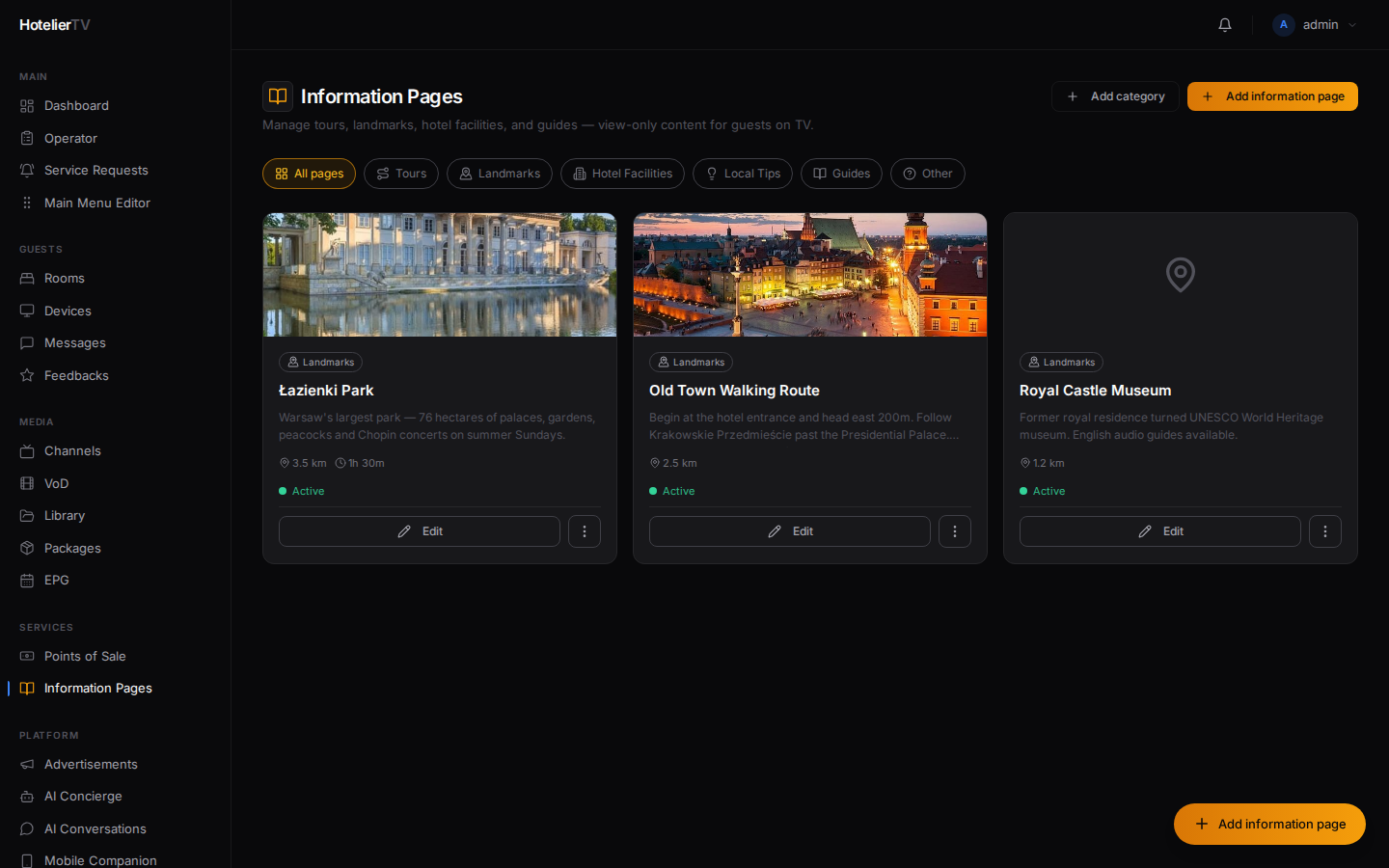
If this is your first time, the page will look empty with a button [Create information area].
Step 2: Create an information area (first time only)
Click [Create information area]. The system creates a default area called "Information" — a container for all your pages.
You only do this once.
Step 3: Add a category
Click [+ Add category] in the top right. Type a category name like "City guide" or "Hotel facilities" and click [Add].
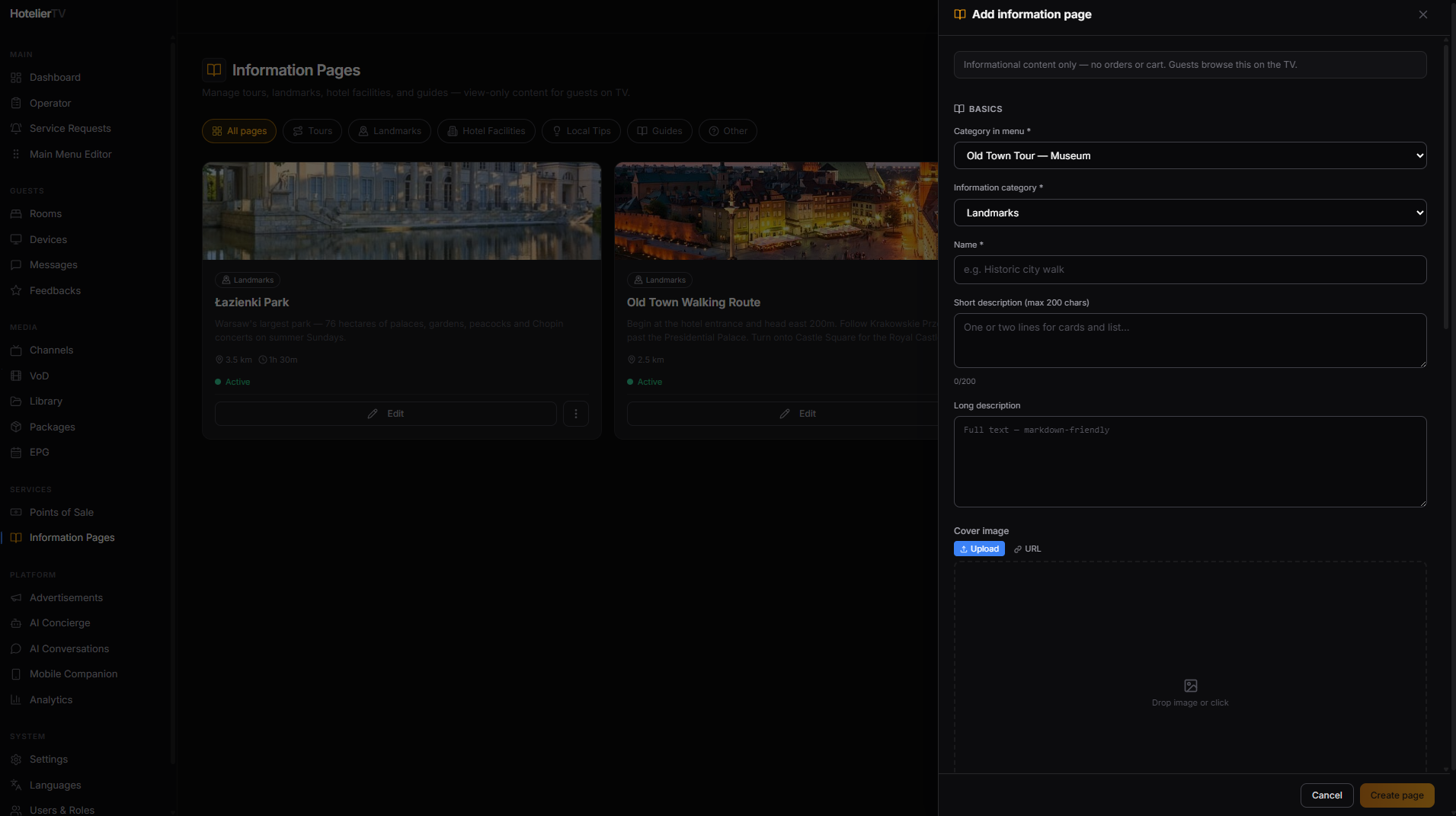
You can have several categories. Each page belongs to one category.
Step 4: Add an information page
Click the orange [+ Add information page] button (top right or floating bottom right).
The page editor opens. Fill in:
- Name — e.g. "Old Town Walking Tour".
- Category — pick from your categories.
- Description — a short blurb (1–2 sentences).
- Image — a hero photo. Upload or paste a URL.
- Information category — a colored tag like Landmarks, Food & Drink, Shopping, Hotel Facilities. Helps guests filter.
- Distance — optional (e.g. "5 min walk").
- Opening hours — optional, free-text (e.g. "Mon–Fri 09:00–17:00").
- Duration — optional, in minutes (for tours).
- Address — optional.
- Featured — optional toggle. Featured pages get a small "Featured" tag on the TV.
- Active — toggle. Off = hidden from guests but kept in your admin.
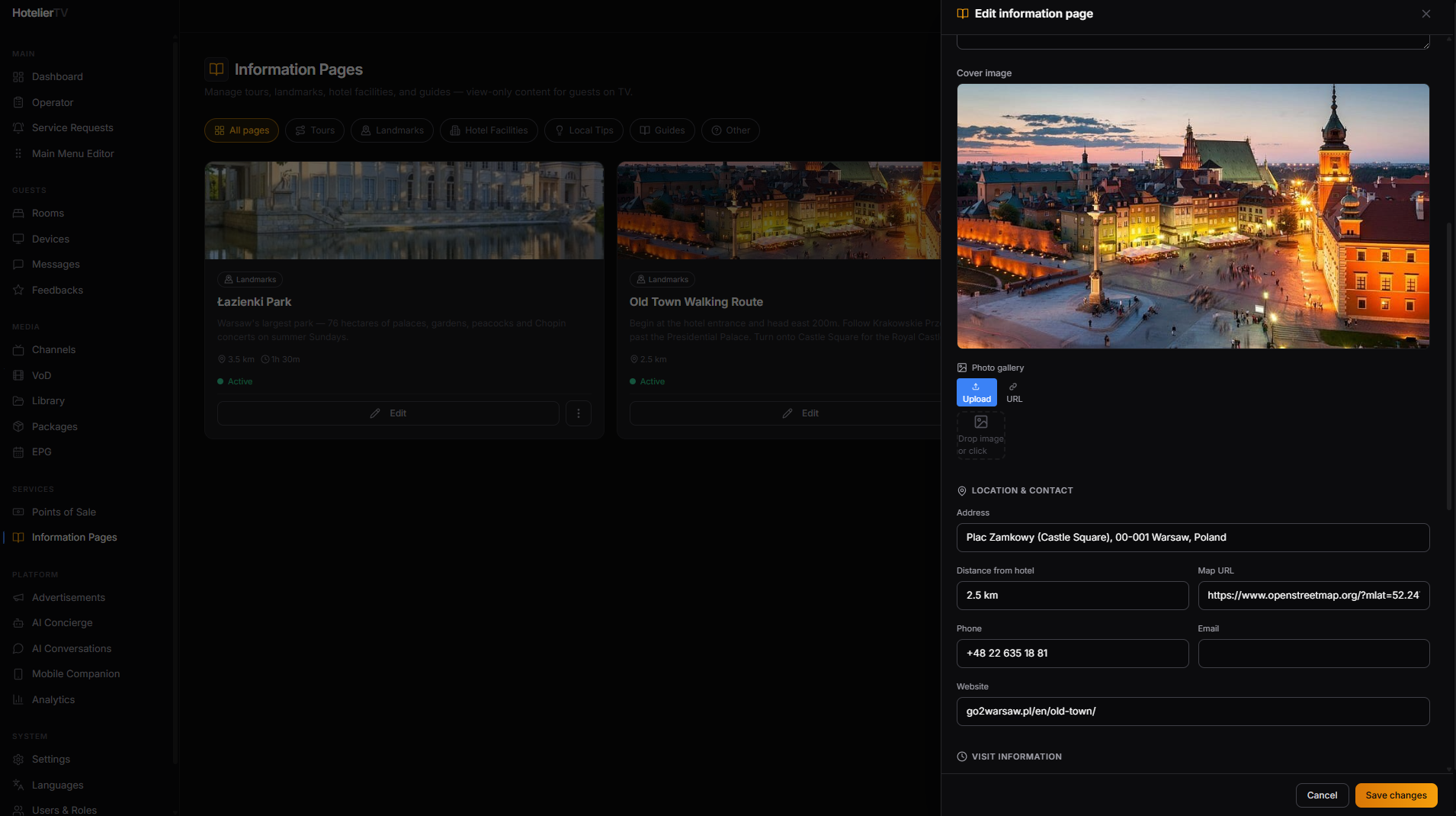
Click [Save] at the bottom.
Step 5: Add a tile to the main menu
To make the Information area visible to guests, you need a Main Menu tile pointing to it.
- Main Menu Editor → [+ New item].
- Set Type to Service Area.
- Target = your information area (usually called "Information").
- Title: "Information" or "Discover". Pick an icon like "book-open" or "map-pin".
- Save.
Now guests see "Information" on the home screen. Tapping it shows the categories you created. Tapping a category shows the pages.
What if it doesn't work?
The "Add information page" button is greyed out: You need to have at least one category. Click [+ Add category] first.
"No information area" error when adding a page: Click [Create information area] first. The system needs a container.
Page doesn't appear on the TV: Two things to check:
- The page's Active toggle is on.
- The Main Menu has a tile pointing to the Information area.