Understand Channel Packages
Bundle channels and movies into packages, then assign packages to specific rooms or room types.
Understand Channel Packages
What you'll learn: What channel packages are, why you'd use them, and how to set them up so different rooms see different channels (e.g. premium suites get sports + cinema, standard rooms don't).
Time needed: 10 minutes.
Before you start
You'll need:
- Login access.
- At least a few channels added. See Browse the Channel Marketplace.
- A clear idea of what differs between your room tiers (if anything).
Why packages?
A package is a named bundle of channels and/or movies plus optional perks (breakfast included, premium WiFi, late checkout, welcome drink, minibar). Each room can be assigned to one package, which controls what the guest sees.
Use packages when:
- You have suite vs. standard tiering — suites get HBO and the sports package, standards don't.
- You upsell premium content — guests pay extra for a "Cinema Plus" package and get extra channels.
- You want to limit content for some rooms (e.g. kids' rooms don't see adult channels).
If every room sees the same content, you don't need packages — skip this.
Step 1: Open the Packages page
In the left sidebar, under MEDIA, click Packages.
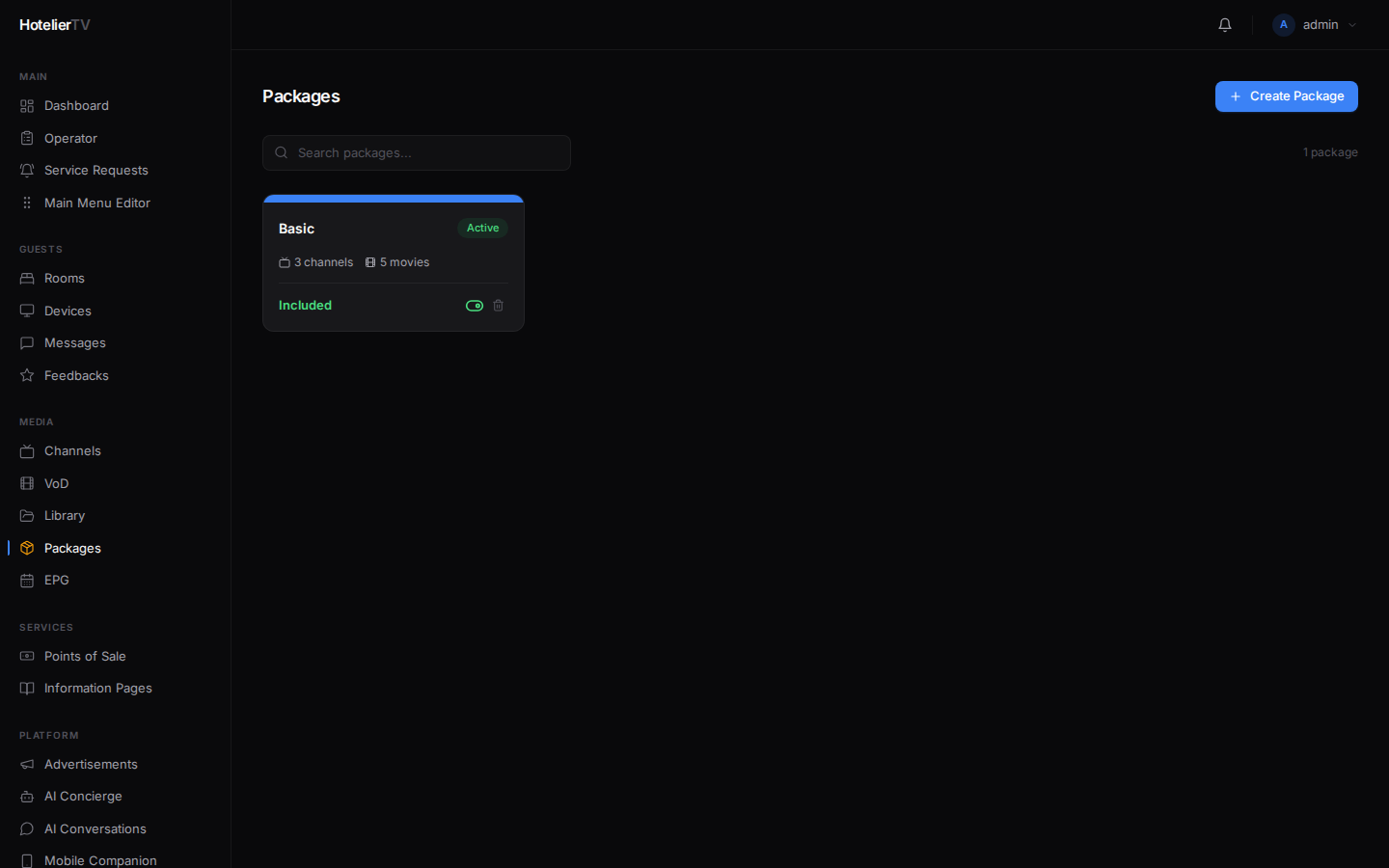
You'll see existing packages (probably none yet).
Step 2: Create a package
Click [+ Add Package] in the top right.
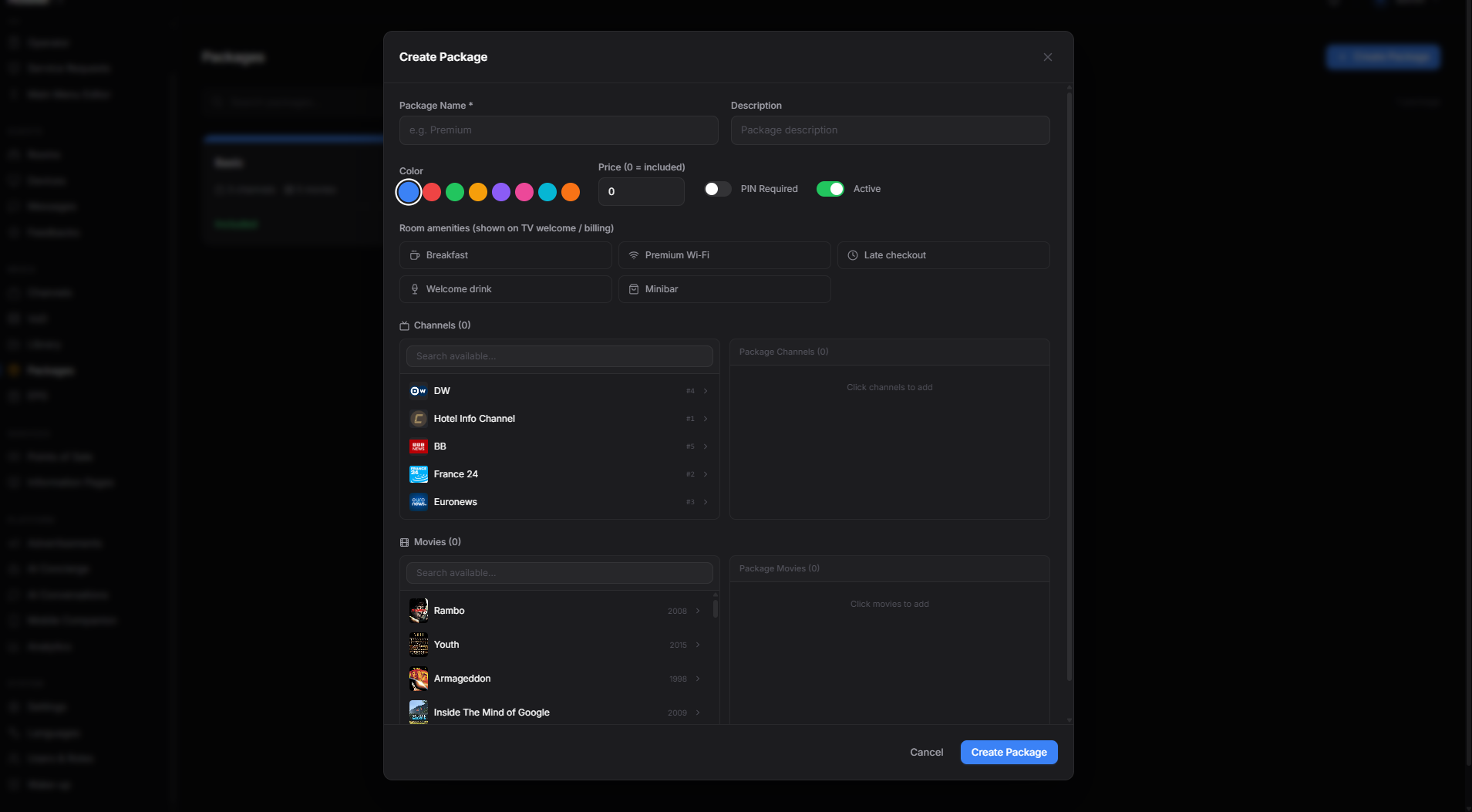
A multi-step dialog opens. Fill in:
- Name — e.g. "Premium Suite".
- Description — optional, what's included.
- Color — pick from a small palette. Used as a tag on room cards.
- Icon — optional.
- PIN required — toggle. If on, watching channels in this package requires a PIN. Useful for adult-content packages.
- Active — toggle.
Then on the next steps:
- Channels — pick the channels included in this package (checkbox list).
- Movies (VoD) — optionally pick specific movies (often used for "all movies free" promo packages).
You can also turn on amenity perks — boolean flags shown to the guest:
- Breakfast included
- Premium WiFi
- Late checkout
- Welcome drink
- Minibar included
Click [Save].
Step 3: Assign a package to a room
Two ways:
Option A: One room at a time
- Go to Rooms, click a room.
- In the detail panel, click Edit.
- In the Package dropdown, pick your package.
- Click [Save].
Option B: Many rooms at once
- Go to Rooms.
- Click the checkbox on multiple room cards (a bulk-action bar appears at the bottom).
- Click [Assign Package] in the bulk bar.
- Pick the package, click [Assign].
Each room card now shows a small colored package label.
Step 4: Test as a guest
Pair a TV in a packaged room and check that:
- Only the package's channels appear in Live TV.
- The amenity perks display somewhere on the welcome screen / mobile companion (this depends on your menu setup).
How it interacts with the Live TV tile
When a guest opens Live TV, the system shows only:
- Channels in their room's assigned package, if a package is assigned.
- Otherwise, all active channels.
If a room has no package assigned, that room sees every channel.
What if it doesn't work?
Room shows all channels even though I assigned a package:
- Check the package's Active toggle is on.
- Confirm the channels you expect are in the package's channel list.
- TV may have stale cache: Devices → Cache reload.
Premium channels in package but not playing:
- The stream URL might be geo-restricted.
- The channel itself might be inactive in the Channels page.
Can't delete a package: The package may be assigned to rooms. Either reassign those rooms first, or delete the package and let the rooms fall back to "no package".