Handle Service Requests
See and respond to guest requests like "extra towels" or "broken air-con" coming from the TV or mobile app.
Handle Service Requests
What you'll learn: How to find, respond to, and close out guest service requests sent from the TV or mobile companion.
Time needed: 2 minutes per request once you know the page.
Before you start
You'll need:
- Login access. The Operator role can also see this page (but not most other admin pages).
Step 1: Open Service requests
In the left sidebar, under MAIN, click Service Requests.
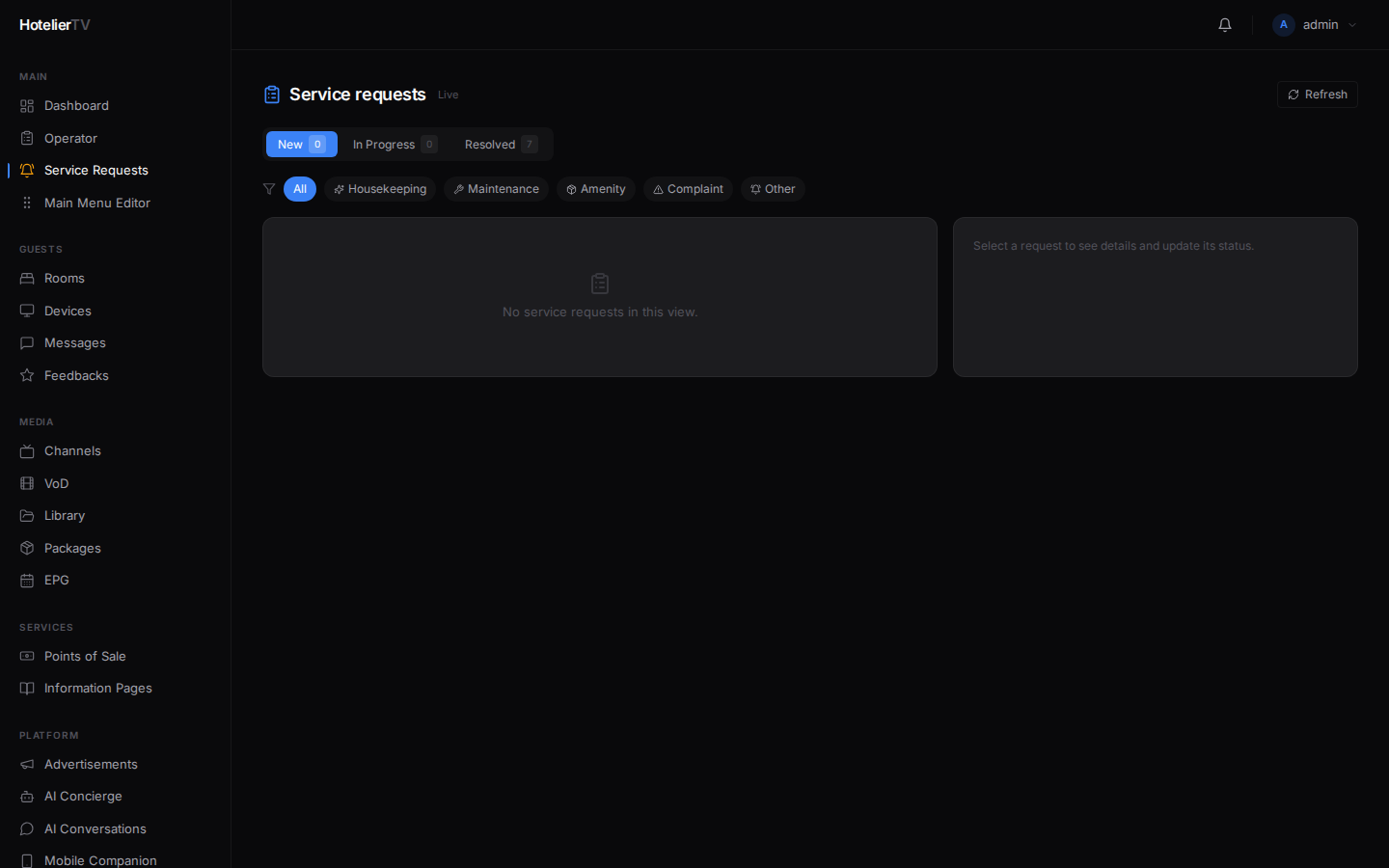
You'll see three tabs at the top:
- New — just-arrived, not yet picked up.
- In Progress — picked up, being worked on.
- Resolved — done or cancelled.
The badge on each tab shows how many requests are in that state.
Step 2: Filter by type
Below the tabs, you can filter by type:
- Housekeeping — towels, cleaning, turn-down service.
- Maintenance — broken light, leaking tap, AC not working.
- Amenity — extras like a kettle, an iron, a phone charger.
- Complaint — guest is unhappy.
- Other — anything else.
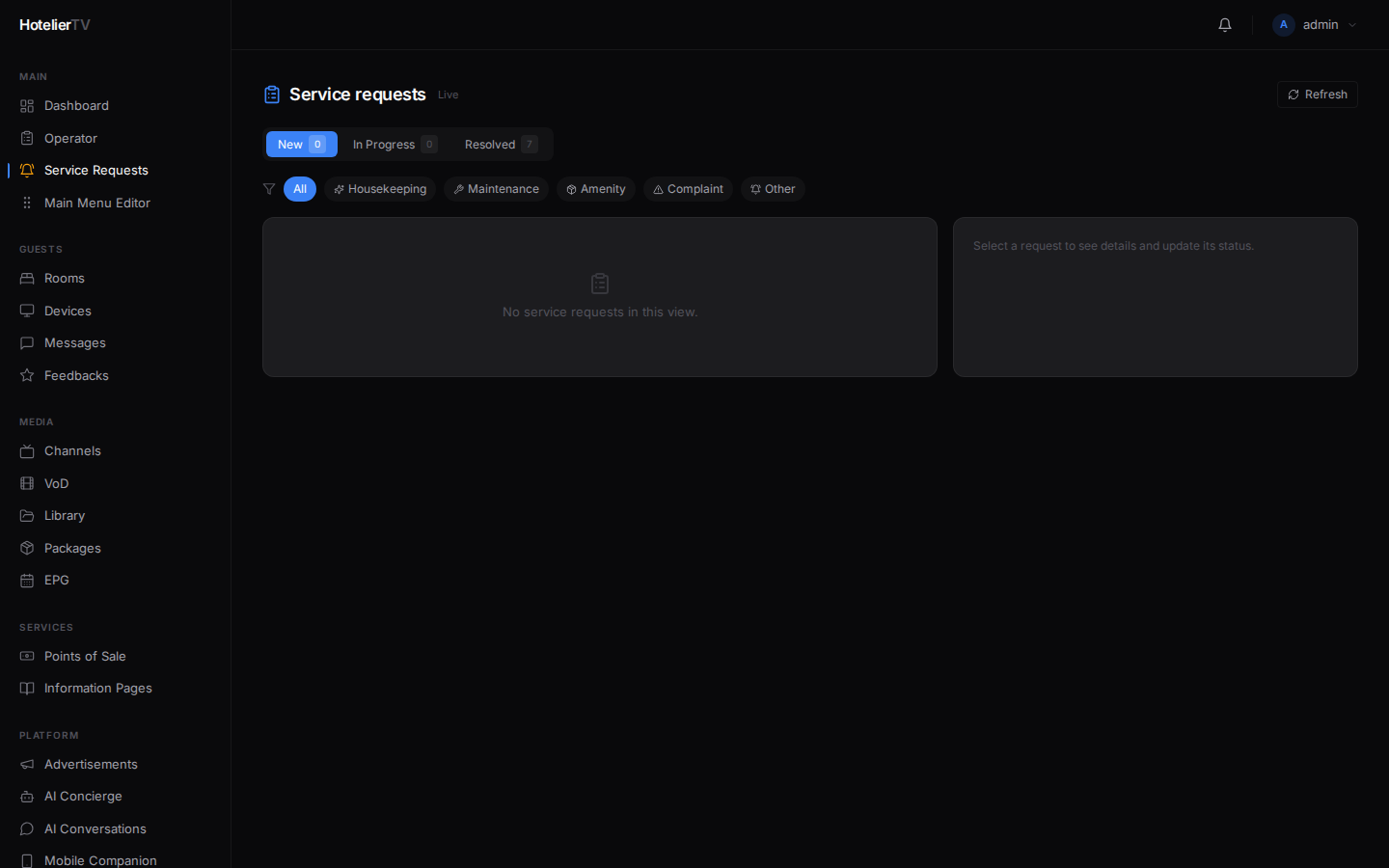
Each request card shows: room number, type icon, priority badge (Urgent / High / Normal / Low), short description, and how long ago it came in. AI-detected requests have a small bot icon.
Step 3: Open a request
Click any request card to expand the details panel. You'll see:
- The full description.
- Guest's room number and name (if checked in).
- Source (TV, mobile companion, AI conversation).
- Priority.
- Conversation context (if it came from the AI).
- A notes field for staff comments.
Step 4: Move it through the workflow
In the detail panel, change the status:
- In Progress — when staff is actively working on it. The guest sees this on their TV/phone.
- Resolved — done.
- Cancelled — guest withdrew the request, or it was a duplicate.
You can also add internal notes that the guest does not see ("Sent housekeeping at 14:30, towels delivered").
Step 5 (optional): Pin priorities
Urgent and High priority requests show a colored border. Train staff to attend to those first. The "New" tab shows all of them at once when filter = All.
How requests get created
Three sources:
- Guest taps a tile on the TV — "Request Housekeeping" etc.
- Guest fills the form on the mobile companion.
- AI Concierge — when a guest asks something the AI thinks is a request, it creates one automatically. These have the bot icon and a "AI detected" tag.
What if it doesn't work?
No requests appearing, even though I know guests are using the TV:
- The AI Concierge might not be enabled (so no AI-detected requests).
- The TV menu might not have the "Service Request" tile. In Main Menu Editor, look for a tile of Type Service Request — add one if missing.
A request keeps coming back to "New" tab: You probably haven't actually changed status. After picking up, click the request and explicitly set it to In Progress.
Page doesn't refresh: Click [Refresh] in the top right, or wait — the page auto-updates when WebSocket notifications arrive.