Browse the Channel Marketplace
Add live TV channels to your hotel — manually, by importing M3U playlists, or through the channel marketplace.
Browse the Channel Marketplace
What you'll learn: How to add live TV channels (BBC, CNN, sports, news, kids' channels, etc.) to your hotel, either by importing a playlist file or adding them one by one.
Time needed: 5 minutes for an M3U import; 1 minute per channel manually.
Before you start
You'll need:
- Login access.
- A source for channel streams. The most common options:
- An M3U playlist file from your IPTV provider (a
.m3uor.m3u8text file with channel names + stream URLs). - Direct HLS URLs (links ending in
.m3u8) from your media partner. - RTSP URLs for older satellite/cable feeds.
- An M3U playlist file from your IPTV provider (a
Note: HotelierTV doesn't sell channel rights. Your hotel needs a licensed agreement with an IPTV/satellite provider that supplies the streams. The COTT Hub may offer pre-packaged channel marketplaces — see your account manager. The admin panel is where you configure channels for your TVs once you have the rights.
Step 1: Open the Channels page
In the left sidebar, under MEDIA, click Channels.
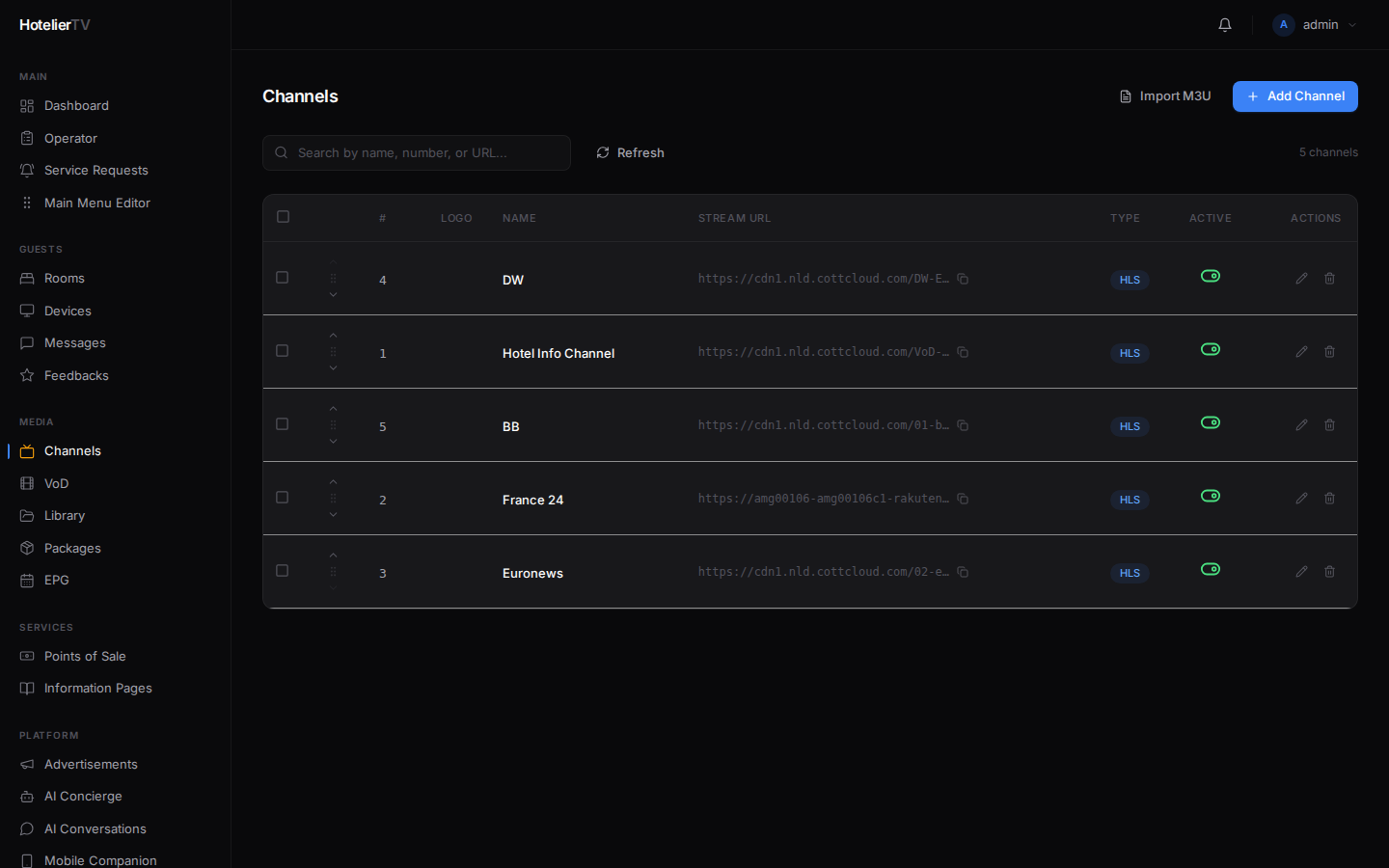
You'll see your existing channels (empty if first time).
Step 2 (recommended): Import an M3U playlist
If your provider gives you a single .m3u file with all the channels, this is the fastest path.
- Click [Import M3U] at the top right.
- Paste the M3U content into the textarea, or upload the file.
- The system parses the file and shows you a preview list — you can deselect channels you don't want.
- Click [Import] to create them all.
Each imported channel comes with: name, stream URL, logo URL (if specified), and channel number (if specified).
Step 3 (or): Add a channel manually
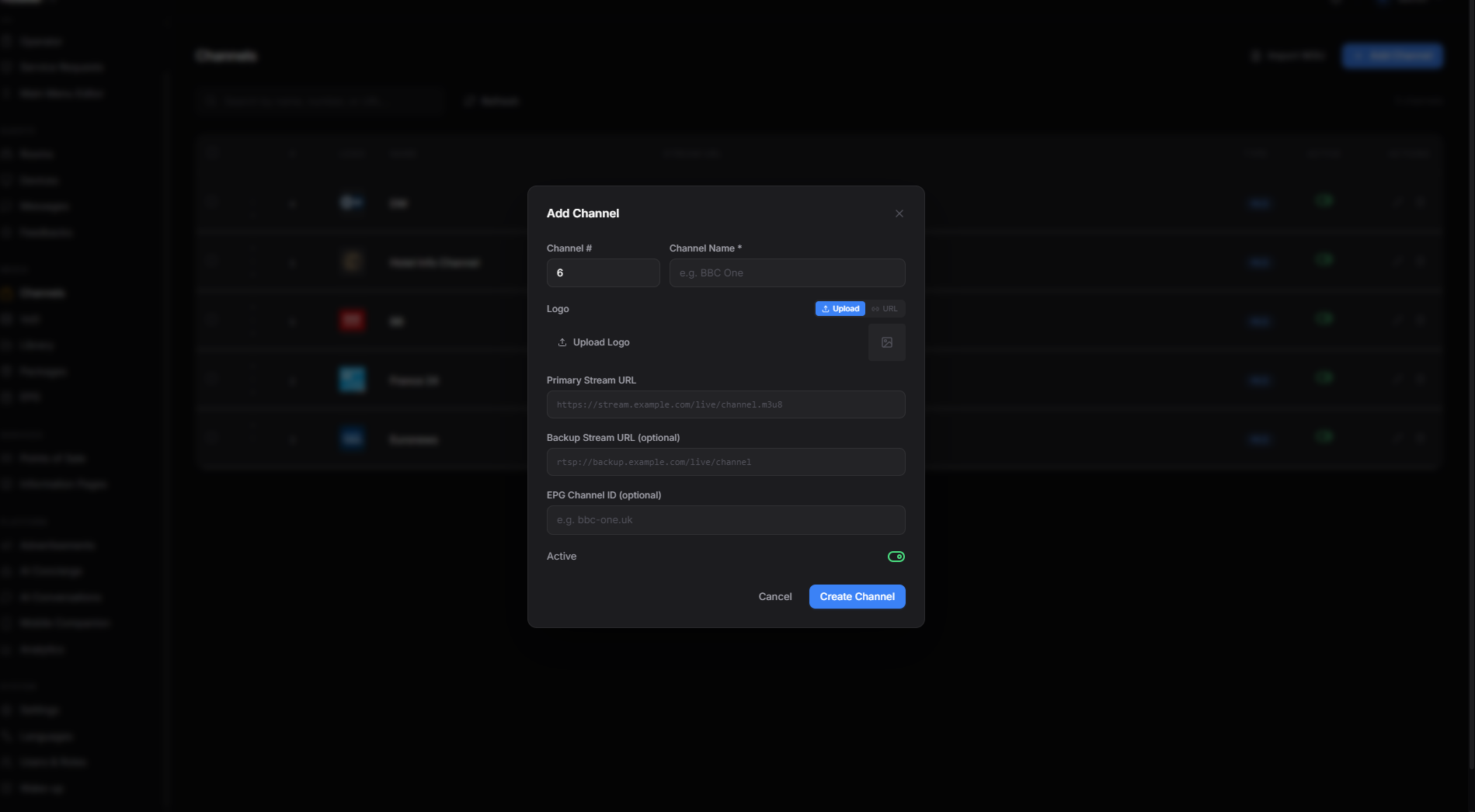
Click [Add Channel].
A dialog opens with these fields:
- Channel number (required) — what guests use to tune in (e.g.
1,2,15). - Name (required) — "BBC One", "CNN International".
- Logo — upload a square logo image, or paste a URL. Up to 5 MB.
- EPG ID (optional) — a string used to match this channel against your EPG (electronic program guide). Only needed if you have an EPG source.
- Streams — at least one is required. Each stream has:
- URL — the stream URL (HLS
.m3u8orrtsp://...). - Type — auto-detected from the URL.
- Primary — toggle. The first/primary stream is the default; others are fallbacks.
- URL — the stream URL (HLS
Click [Save].
Step 4: Make sure Live TV is on the home menu
The system has a built-in LIVE_TV menu type. In Main Menu Editor, look for a tile of Type Live TV. If missing, click [+ New item], set Type = Live TV, give it a title (e.g. "TV Channels"), pick a tv icon, save.
Now guests see the channel list when they tap Live TV.
Step 5: Reorder channels
In the Channels list, drag rows by the handle on the left to reorder. The order here is the order guests see when they open the channel list.
You can also edit channel numbers — those control the channel-number tuning (typing "5" goes to the channel with number 5).
Step 6: Test a channel
Click any channel in the list to open the detail panel. Click [Play] to preview the stream in the admin panel. If it plays here, it'll play on a paired TV.
What if it doesn't work?
M3U import shows zero channels:
- The file isn't a valid M3U. Open it in a text editor — it should start with
#EXTM3U. - Channels need both
#EXTINF:lines and a URL line. If yours only has URLs, the parser skips them.
Channel plays in admin but not on TV:
- The TV may be on a network that can't reach the stream URL (firewalls, NAT issues).
- Some streams are geo-restricted.
- Check the device's IP address against allowed networks.
Logo upload fails:
- Max 5 MB.
- Use JPG, PNG, WebP, or SVG.