Pairing PIN Expired
What to do when the registration PIN expires before you finish pairing a TV.
Pairing PIN Expired
What you'll learn: Why pairing PINs expire, what "PIN expired" on the TV actually means, and the fastest way to recover.
Time needed: 1 minute.
Why PINs expire
For security, each PIN is valid for 10 minutes. If anyone got hold of a PIN and the system never expired them, they could pair a rogue device to a guest's room and snoop on their content.
Ten minutes is usually plenty when you're standing in the room. But if you generate a PIN, get distracted, then come back later — it's gone.
How to recover
You can't extend an expired PIN. You make a new one.
From a room
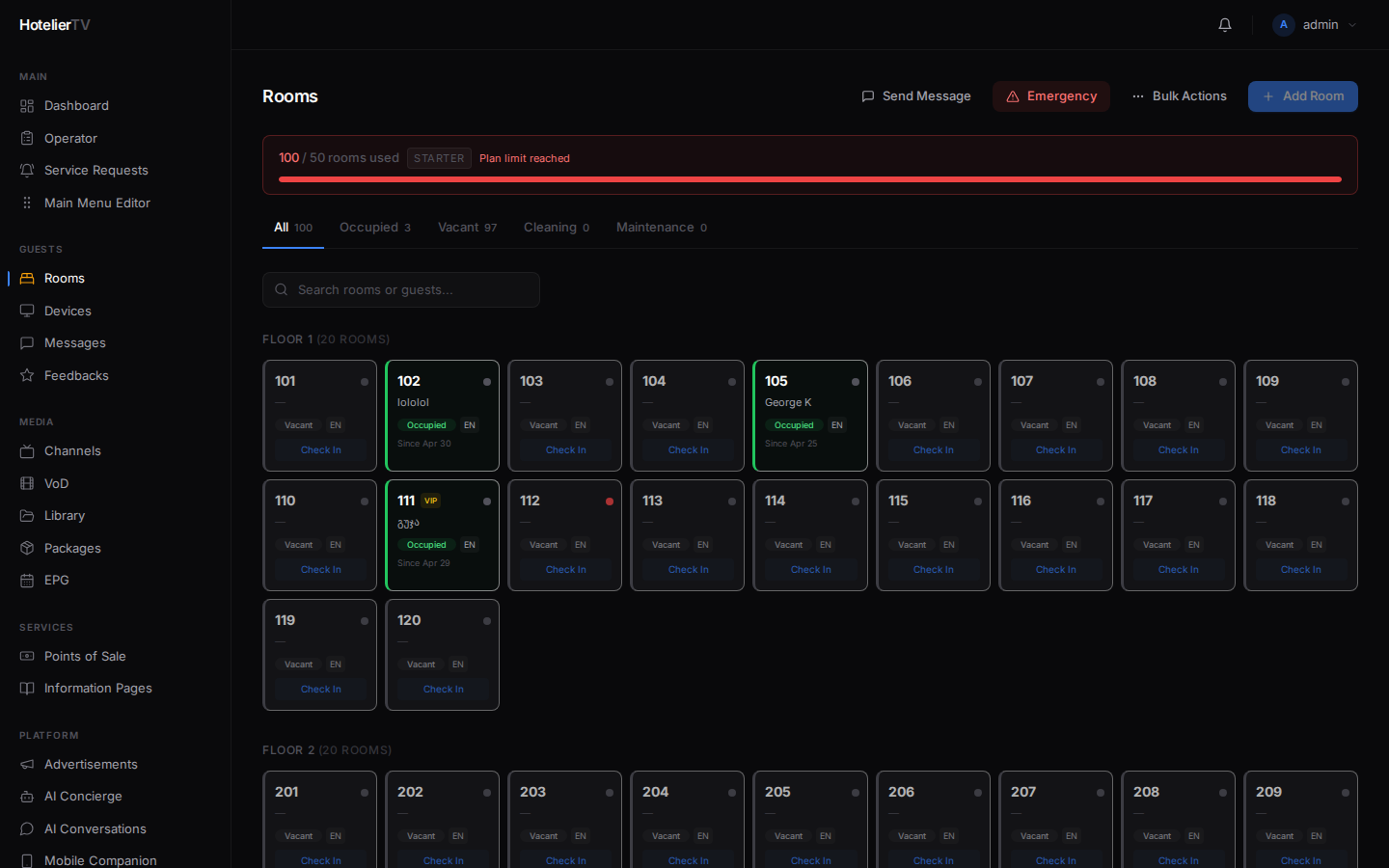
- Go to Rooms in the sidebar.
- Click the affected room.
- In the detail panel, scroll to Devices.
- Click + Register.
- A new PIN is generated. The 10-minute timer restarts.
- Type the new PIN on the TV.
From the Devices page
- Go to Devices.
- Click [Generate PIN] at the top right.
- Pick the room, click [Generate PIN].
- Type the PIN on the TV.
Avoid the problem
A few habits that help:
- Generate the PIN only when you're in front of the TV. Don't generate ahead of time.
- Use the copy icon to save the PIN to clipboard, paste into a phone message if you're coordinating with someone in the room.
- Watch the countdown in the dialog — it goes red under 1 minute. If it's red, click [New PIN] to refresh and start over.
"I generated a PIN, used it on the wrong room"
If you accidentally typed Room 101's PIN on the TV in Room 102:
- Go to Devices in the sidebar.
- Find the wrongly-paired device.
- Click the row to open the panel.
- Under Room Assignment, click Unassign.
- Generate a new PIN for the correct room and pair again.
"The TV says 'Invalid PIN' even though it's not expired"
Two possibilities:
- You typed it wrong. PINs are 6 digits. Re-check the number.
- The PIN expired between when you generated it and when you typed it. Generate a new one.