Add an App Tile
Add a Netflix, YouTube, Spotify, or other app launcher to the TV home screen.
Add an App Tile
What you'll learn: How to add a tile that launches an app like Netflix, YouTube, or Spotify when a guest taps it on the TV.
Time needed: 2 minutes per app.
Before you start
You'll need:
- Login access.
- The app's package ID for the TV's operating system. For Android: usually something like
com.netflix.ninja. For Tizen / WebOS: a different format that your TV vendor or installer can provide. - Optionally: an icon image.
Note: App tiles only work on TVs that have the app installed at the OS level. HotelierTV doesn't install apps on the TV — it just launches them. If your guest TVs are managed by an external IPTV/STB partner, ask them which apps are installed and what their IDs are.
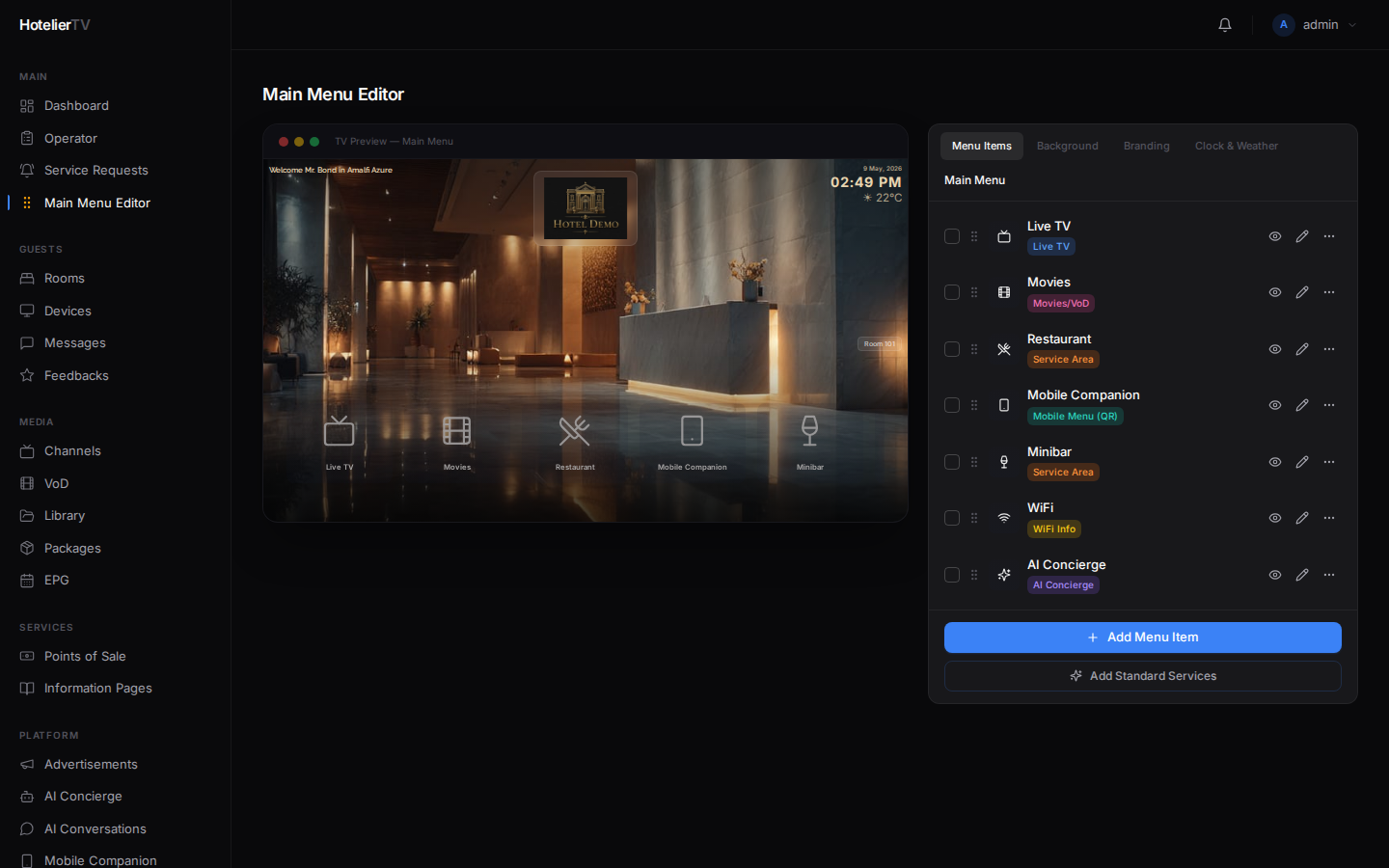
Step 1: Open the Main Menu Editor
In the left sidebar, under MAIN, click Main Menu Editor.
Step 2: Add a new menu item
Click [+ New item] at the bottom of the menu list.
The edit panel opens.
Step 3: Configure the tile
Fill in:
- Title — e.g. "Netflix" or "YouTube".
- Description — optional subtitle.
- Type — pick App from the dropdown.
- Target (the field that appears below) — paste the app's package ID. Example:
com.netflix.ninjafor Netflix on Android.
- Icon — pick from the icon library, or upload your own (Netflix, YouTube, Spotify logos work well).
- Background — match the brand: Netflix red, YouTube red, Spotify green, etc. Use a solid color or gradient.
Click [Save] at the top of the edit panel.
Step 4: Test on a TV
Walk over to a paired TV. The new tile should appear on the home screen within a minute. Tap it — the app launches.
If it doesn't launch, the app likely isn't installed on the TV, or the package ID is wrong for that platform.
Common app package IDs
These are the most common ones, but always verify with your installer or TV vendor:
| App | Android (most STBs) |
|---|---|
| Netflix | com.netflix.ninja |
| YouTube | com.google.android.youtube.tv |
| Spotify | com.spotify.tv.android |
| Prime Video | com.amazon.amazonvideo.livingroom |
| Disney+ | com.disney.disneyplus |
Different platforms = different IDs. A Tizen TV (Samsung) and a WebOS TV (LG) and an Android TV all use different app ID formats. If your hotel mixes platforms, you may need separate tiles per platform — or accept that some won't launch on some TVs.
What if it doesn't work?
Tile appears but doesn't launch the app:
- App isn't installed on the TV. Ask your installer.
- Wrong package ID for the TV's OS. Double-check with the vendor.
Tile saved with no icon: The icon field is optional. Re-open the tile and pick one from the library.
Changes don't appear on TV: TVs cache the menu. Wait a minute, or restart the TV.