Dashboard Tour
A guided tour of the HotelierTV admin home screen.
Dashboard Tour
What you'll learn: What every card and number on the dashboard means, so you know at a glance how your TV system is doing.
Time needed: 3 minutes to read through.
Before you start
You'll need:
- To be signed in to the admin panel. See First Login.
What you see when you land
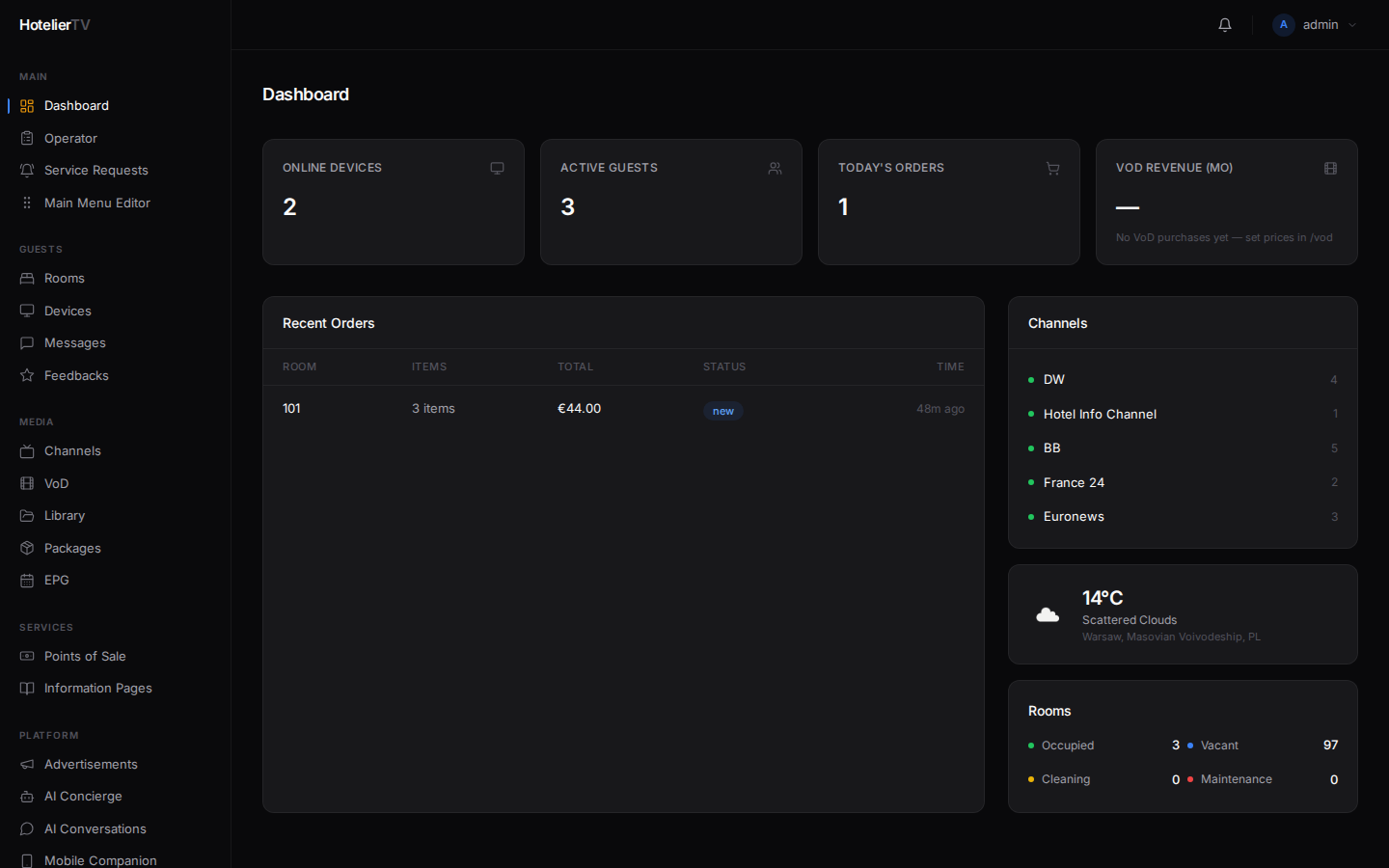
The first thing the admin panel shows is the Dashboard. Think of it as the front desk of your TV system — a quick overview of what's happening right now.
The four cards at the top
Across the top of the dashboard you'll see four cards:
- Online Devices — how many TVs are currently turned on and connected. If this number is much lower than your room count, some TVs may be off or unplugged.
- Active Guests — how many rooms are currently occupied (have a guest checked in).
- Today's Orders — how many room-service or restaurant orders guests placed today through the TV.
- VoD Revenue (mo) — money earned from paid movies this month, with a small green or red arrow showing the change from last month.
If a card shows — or 0, you'll see a hint underneath telling you what's missing (for example, "No online devices yet — register a TV from /rooms").
The left sidebar
Down the left side of the screen is your navigation menu. It's grouped into sections:
- MAIN — Dashboard, Operator (a focused view for front desk staff), Service Requests, Main Menu Editor.
- GUESTS — Rooms, Devices, Messages, Feedbacks.
- MEDIA — Channels, VoD (movies), Library (your file uploads), Packages, EPG (TV guide).
- SERVICES — Points of Sale (restaurants, room service, spa, stores), Information Pages.
- PLATFORM — Advertisements, AI Concierge, AI Conversations, Mobile Companion, Analytics.
- SYSTEM — Settings, Languages, Users & Roles, Wake-up.
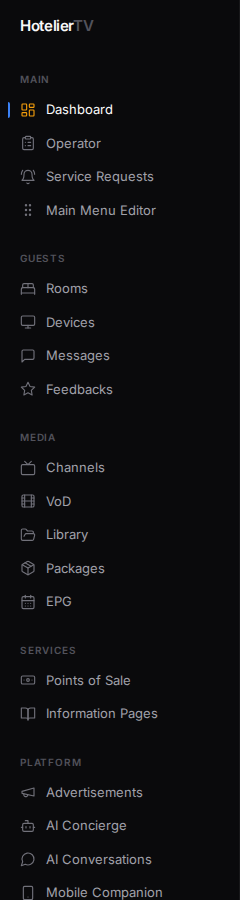
Click any item to jump to that area. The current page is highlighted with a small yellow bar on the left.
The right column
To the right of recent orders you'll see:
- Channels — your top 5 TV channels with a green dot if they're active.
- Weather — current weather for your hotel's location (if you set up the weather provider in Settings).
- Rooms — a quick count of Occupied / Vacant / Cleaning / Maintenance rooms.
Security alerts
If anything suspicious happens with a TV (for example, a device's identity changed unexpectedly), you'll see a red banner at the top of the dashboard. Click View Devices to investigate.
What if it doesn't work?
The dashboard is empty or all numbers are zero: That's normal when you first sign in — you haven't added rooms, TVs, or content yet. Go to First-Time Setup.
The weather card says "Weather not configured": This is optional. To set it up, click Configure in Settings, go to the Weather tab, and follow the instructions there.
A card is missing or the page looks broken: Refresh the page (Ctrl+R or Cmd+R). If still broken, sign out and back in.