Troubleshoot TV Pairing
When a TV won't pair with the room — what to check and how to fix it.
Troubleshoot TV Pairing
What you'll learn: What to check when pairing a TV to a room isn't working — without calling support.
Time needed: 5–15 minutes depending on the cause.
Before you start
You'll need:
- Physical access to the TV (or someone in the room with their phone).
- The admin panel open in your browser.
Common problem 1: TV doesn't show a pairing screen
What you see: TV is on, but it shows the manufacturer logo, a black screen, or a generic "smart TV" home — not the HotelierTV pairing screen.
What to try:
- Restart the TV. Pull the power for 10 seconds, plug back in. Many TVs need a fresh boot for the hotel app to launch.
- Check the network. The TV needs internet. If your hotel has a guest network and a staff network on different SSIDs, make sure the TV is on the right one.
- Check that the HotelierTV app is installed. This is usually done by your installer, not by you. If the TV is brand new and the app was never installed, that's a job for your IT contact.
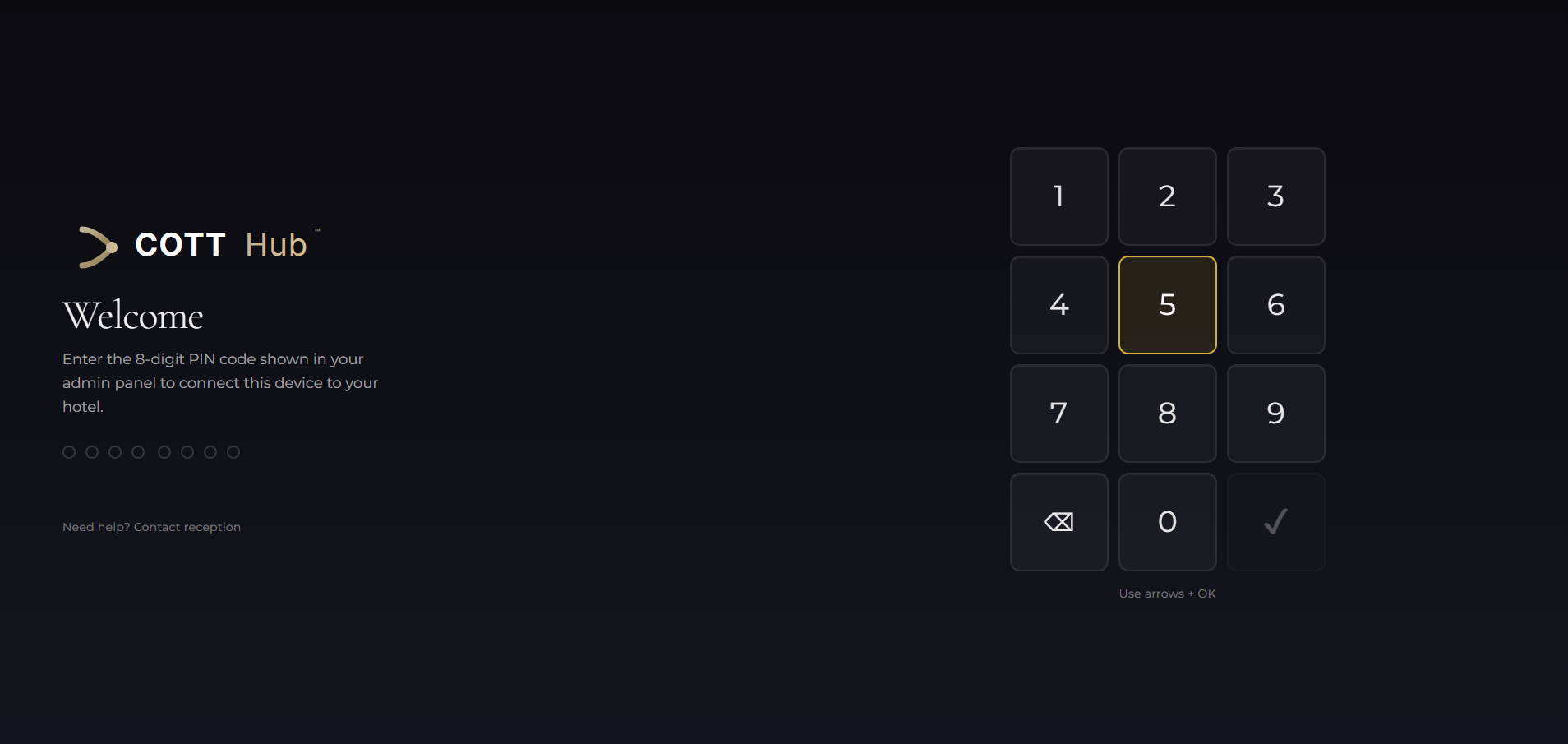
Common problem 2: PIN expired
What you see: TV says "PIN expired" or "Invalid PIN" even though the PIN looks right.
What to try:
- In the admin panel, on the same room, click + Register again to generate a fresh PIN.
- Type the new one within 10 minutes.
PINs always expire after 10 minutes for security reasons. There's no way to extend an expired one — just make a new one.
See: Pairing PIN Expired
Common problem 3: Wrong room paired
What you see: TV in Room 102 was accidentally paired with the PIN for Room 101. Now the TV in 101 is "empty" and 102's TV shows 101's content.
What to try:
- In the admin panel, click Devices in the sidebar.
- Find the device by its MAC address or device ID.
- Click the device row — a side panel opens.
- Under Room Assignment, click Unassign.
- Now generate a new PIN for the correct room and pair again.
Or, faster: just generate a new PIN for the right room and re-pair the TV. The old assignment will be replaced.
Common problem 4: TV is paired but shows nothing useful
What you see: TV paired successfully, but the welcome screen is missing the hotel logo, has no menu items, or shows weird placeholder text.
What to try:
- Logo missing: Go to Settings → Identity and upload a logo.
- Menu empty: Go to Main Menu Editor and check that menu items are not all hidden. The eye icon toggles visibility.
- Wrong language: Go to the room in the Rooms page, click it, and change Language in the guest info panel.
Common problem 5: Device shows "Offline" but TV is on
What you see: Admin panel shows the device with a red "Offline" badge, but the TV is clearly on and playing content.
What to try:
- Wait 1–2 minutes. The "Last Seen" timer updates roughly every minute.
- If still offline, the TV may be on a network segment that can't reach the server. Check the TV's IP address (in your network admin tool) and make sure it can reach the HotelierTV server.
- As a last resort: go to the device in the Devices page, click the three-dot menu, and pick Cache reload or App restart.
When to call for help
Contact COTT support if:
- Multiple TVs that worked yesterday all stopped working today (suggests a server issue, not a TV issue).
- The pairing screen on the TV shows error messages we don't cover here.
- You see "MAC Spoofing Detected" alerts on the dashboard or Devices page.