Schedule Wake-up Calls
Schedule, edit, and cancel wake-up calls for guest rooms.
Schedule Wake-up Calls
What you'll learn: How to set up wake-up calls for one room or many — one-time, daily, or on specific days of the week.
Time needed: 1 minute per wake-up.
Before you start
You'll need:
- Login access.
- The room number and the time the guest wants to be woken.
Step 1: Open Wake-up calls
In the left sidebar, under SYSTEM, click Wake-up.
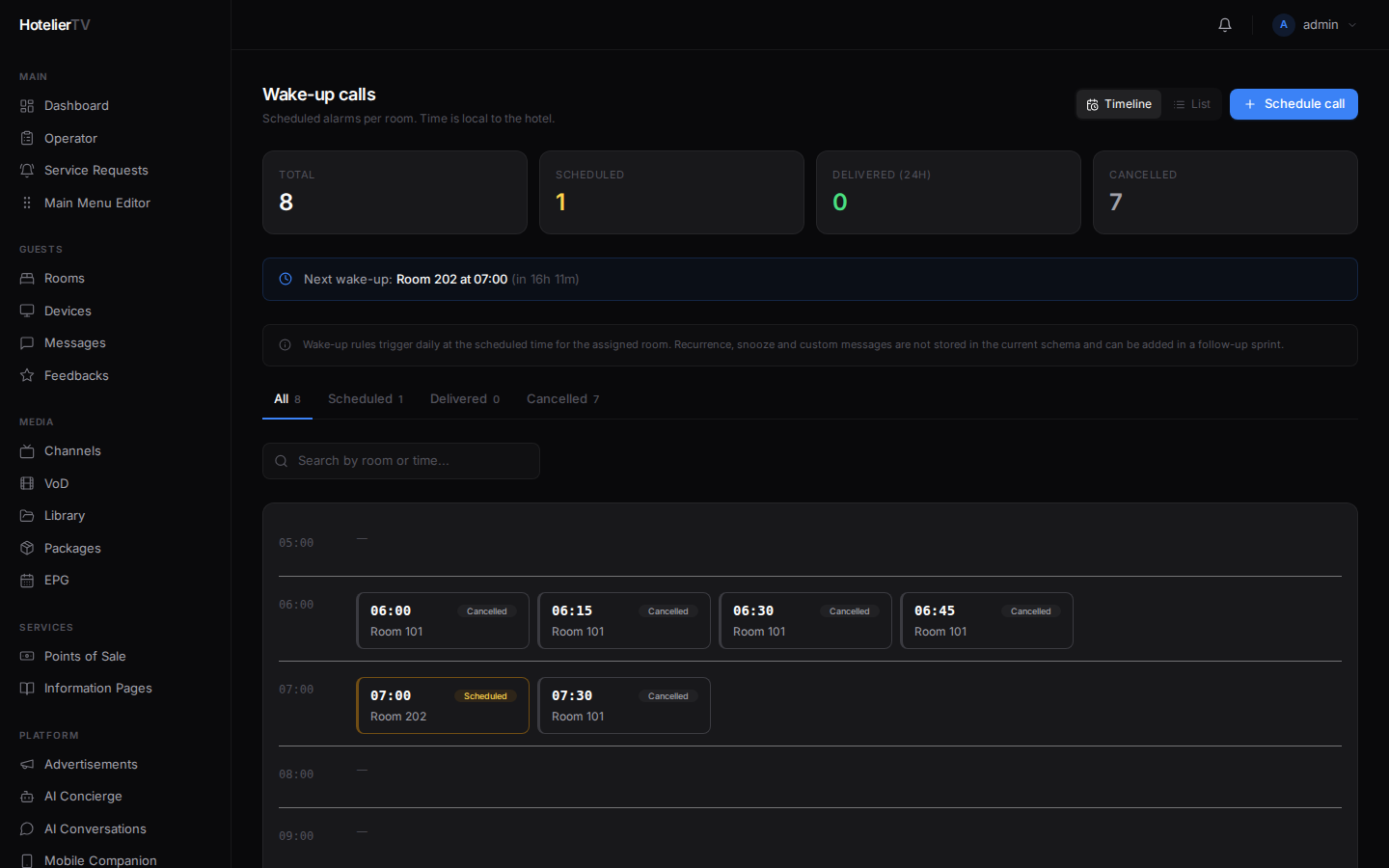
You'll see:
- A Next wake-up highlight at the top (if any are scheduled).
- Summary cards: Scheduled, Delivered, Cancelled.
- A toggle between Timeline and List views.
Step 2: Schedule a call
Click [Schedule call] at the top right.
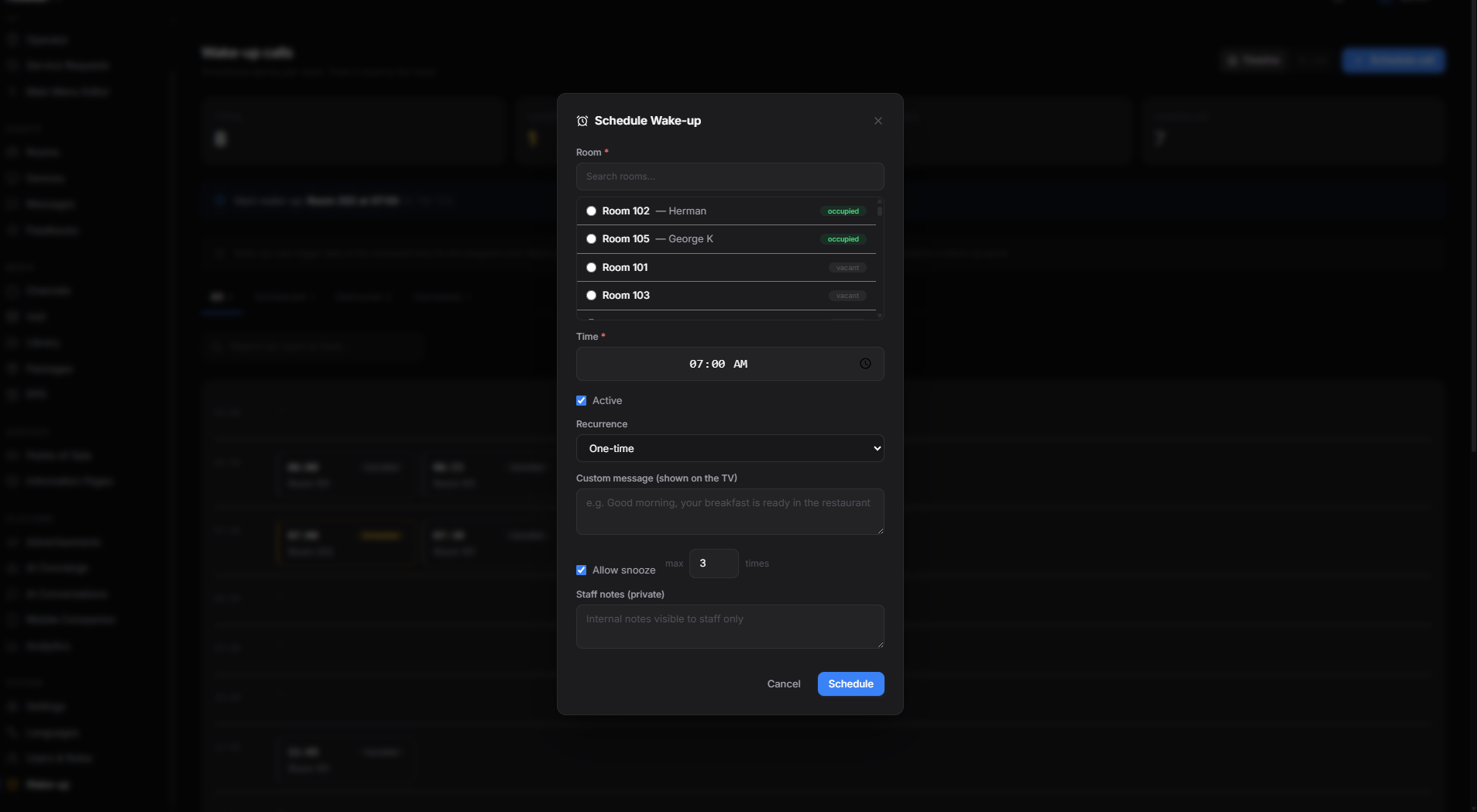
Fill in:
- Room — pick from the dropdown.
- Time — pick the time using the time picker (HH:MM, hotel local time).
- Recurrence:
- One-time — wakes the guest tomorrow morning at that time, then never again.
- Every day — repeats daily until cancelled.
- Mon–Fri — weekdays only.
- Sat–Sun — weekends only.
- Custom days — pick specific days of the week.
- Custom message (optional) — instead of the default "Good morning", type your own.
- Snooze allowed (optional toggle) — let guests snooze. If on, set the maximum number of snoozes.
- Staff notes (optional) — internal notes ("birthday — extra croissant").
Click [Save].
Step 3: View the schedule
The Timeline view shows all wake-ups for the day, grouped by hour. Useful for visualizing the morning rush.
The List view shows them as a simple list. Sort by time, search by room number or guest name.
Each entry shows:
- Time with how soon it triggers ("in 14 minutes").
- Room number and guest.
- Recurrence label.
- Status: Scheduled (amber), Delivered (green), Cancelled (grey).
- Snooze count if applicable.
Step 4: Edit or cancel
Click any wake-up entry to open the edit panel. Change time, recurrence, snooze, notes — save. Or click [Cancel] to set it to inactive.
Bulk actions
Select multiple wake-ups using the checkboxes (when in List view). The bulk bar at the bottom lets you Activate, Cancel, or Delete many at once.
Setting wake-ups directly from a room
Faster path for a single guest:
- Go to Rooms, click the room.
- In the side panel footer, click [Wake-up].
- Pick a time, click [Set].
This creates a one-time wake-up for the next occurrence of that time.
What if it doesn't work?
Wake-up doesn't trigger:
- The TV must be paired and online. Check Devices.
- The wake-up must be Active (not cancelled).
- The current time must match. Confirm hotel timezone in Settings → Identity.
Time shows in the wrong timezone: The displayed time uses the hotel's local timezone (set in Settings → Identity). If wrong, fix it there.
Recurrence "Custom days" not visible: Pick Custom days in the Recurrence dropdown, then check the day boxes that appear.
Guest snoozed and the call still doesn't go off: Check the Snooze max value. If reached, the wake-up is considered delivered.