Hotel Branding
Set your hotel name, logo, address, and other identity that shows up across the TV system.
Hotel Branding
What you'll learn: How to set the hotel name, logo, contact info, and localization (timezone, currency, default language) that appears across guest TVs, the mobile companion app, and emails.
Time needed: 5 minutes.
Before you start
You'll need:
- Login access.
- A logo file — PNG with transparent background works best, ideally 512×512 pixels, under 2 MB.
- Your hotel's address, email, phone, and (optionally) WhatsApp number.
Step 1: Open Settings → Identity
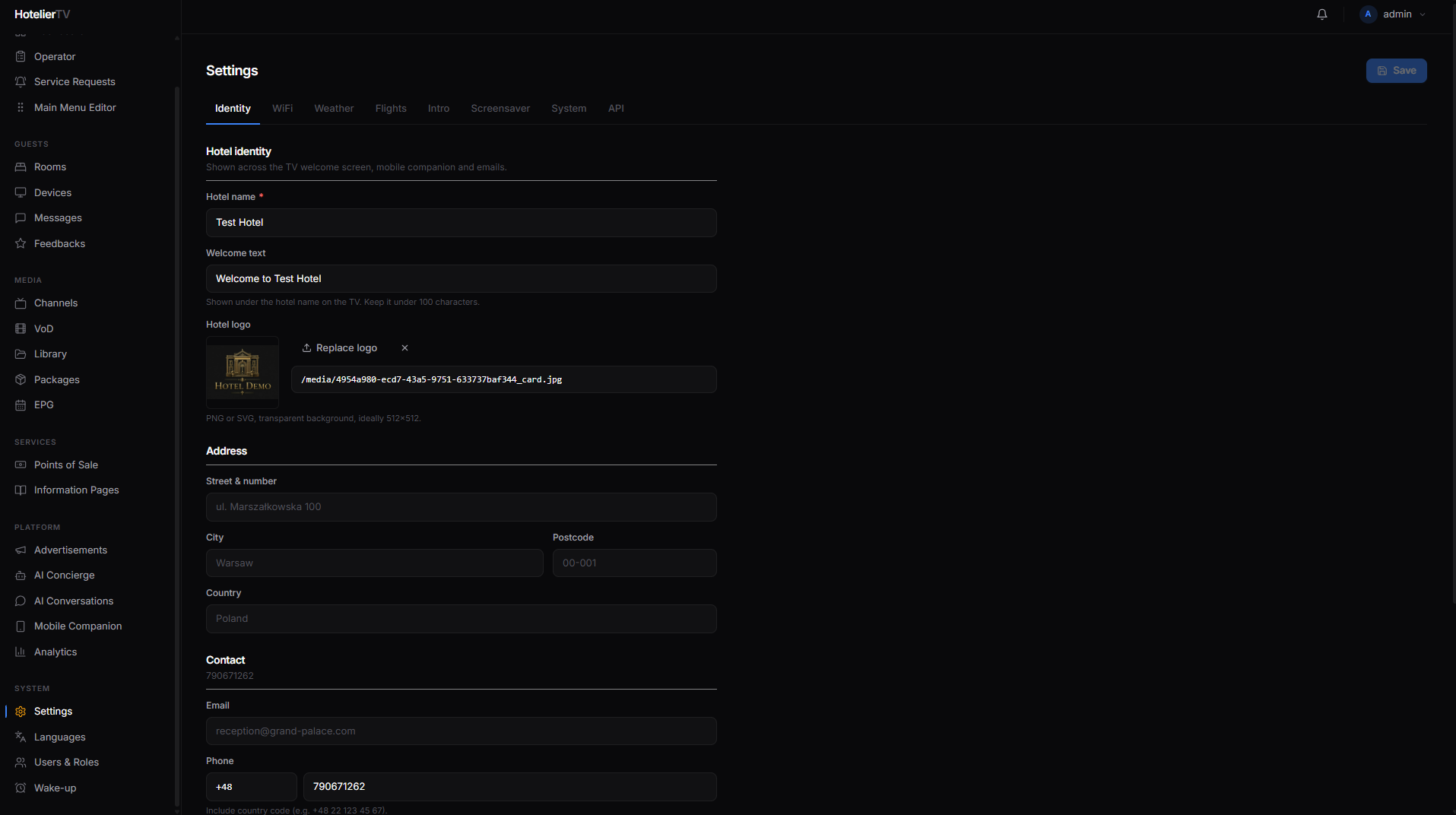
In the left sidebar, under SYSTEM, click Settings.
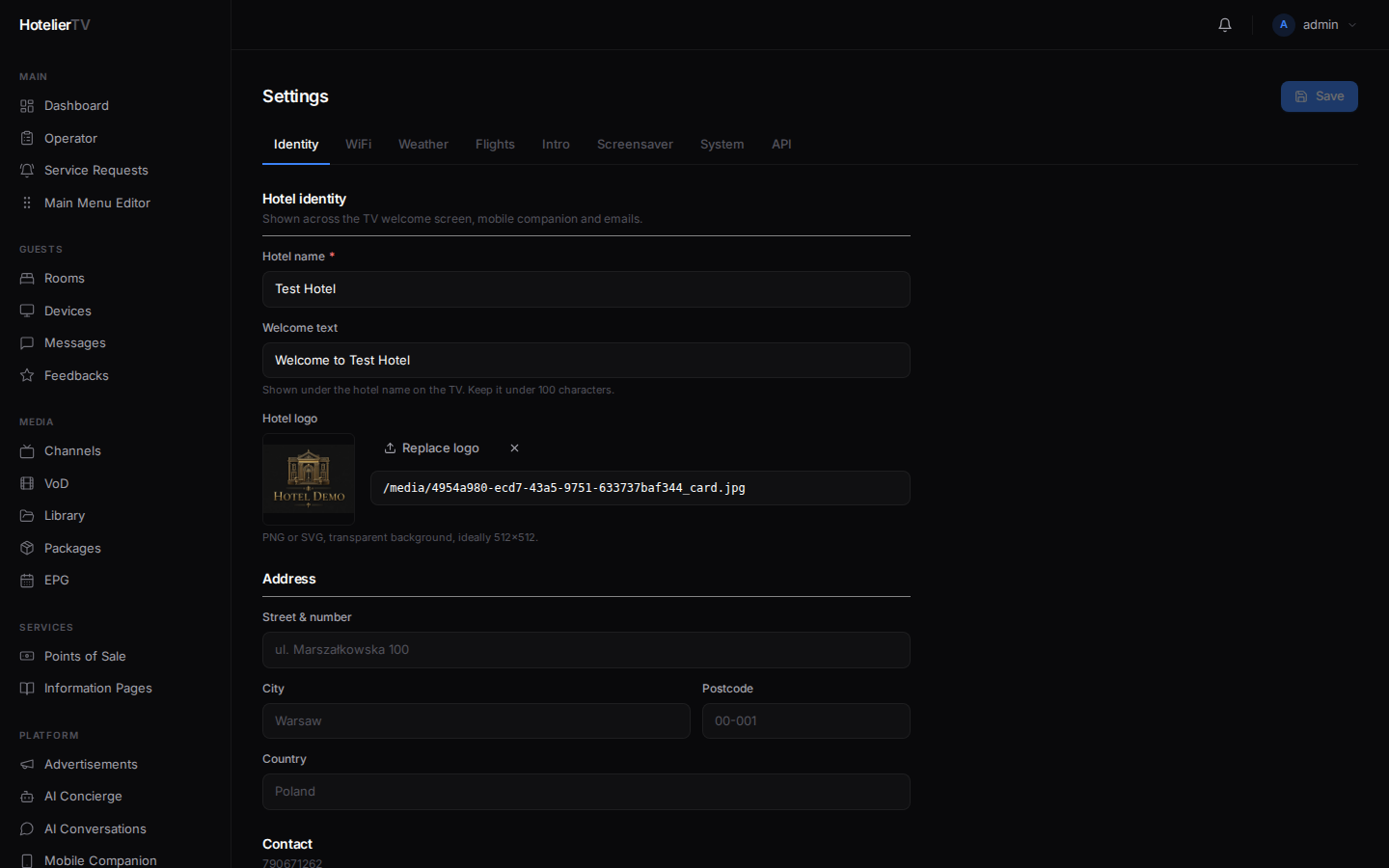
The Settings page has tabs across the top: Identity, WiFi, Weather, Flights, Intro, Screensaver, System, API.
Click the Identity tab.
Step 2: Hotel identity
Under Hotel identity, fill in:
- Hotel name (required) — "Grand Palace Hotel". Supplies the general hotel identity, mobile companion, and emails. The TV can have separate welcome text in Main Menu Editor.
- Welcome text — friendly subtitle (e.g. "Welcome to an unforgettable stay."). Up to 120 characters.
- Hotel logo — click [Upload logo] and pick a file. Or paste a URL into the field below.
Important: Identity supplies the hotel name and general logo. Main Menu Editor can also have its own TV logo and welcome text. Check those TV design controls when the TV differs from the mobile companion; an explicit TV design is not another hotel.
Step 3: Address
Fill in Street & number, City, Postcode, and Country. Used in invoices and confirmation emails.
Step 4: Contact
- Email — reception or front-desk email.
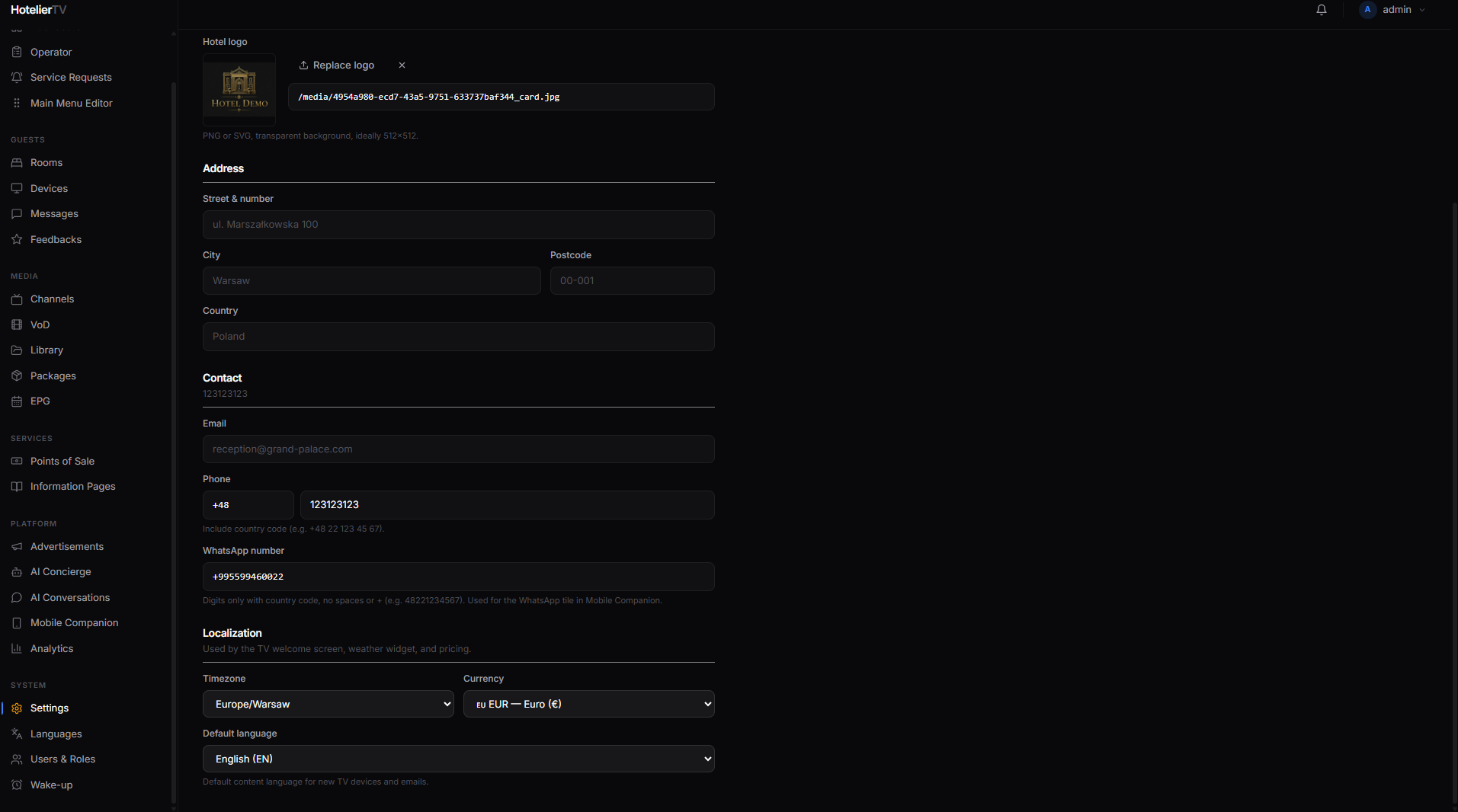
- Phone — a country code field plus the local number. Used by the TV's "Call Reception" tile.
- WhatsApp number — digits-only with country code, no spaces or
+. Example:48221234567. Used by the WhatsApp tile in Mobile Companion.
Step 5: Localization
- Timezone — pick from the list. Used by the clock widget and email timestamps.
- Currency — used everywhere prices are shown (restaurants, VoD, etc.).
- Default language — language used for new TV devices and outgoing emails. Guests can switch their TV's language individually after check-in.
Step 6: Save
Scroll up and click the [Save] button at the top right of the page. The button shows "Saved" in green for a moment when done.
What if it doesn't work?
Logo upload fails:
- File must be under 2 MB.
- Supported formats: PNG, JPEG, WebP, SVG.
- Try a smaller or different file.
Logo looks wrong on the TV:
- Use a transparent PNG so it works on any background.
- A square aspect ratio (e.g. 512×512) is most flexible.
Save button stays greyed out: You haven't changed anything yet. Edit a field and the button activates.
TV still shows old name/logo after saving: TVs cache content. Wait a minute, or go to Devices and use Cache reload on a specific TV.
Public marketing demo shows different branding:
- Sign in to
marketing-demo.hotelier.cott.cloud, not another hotel. - Save general identity in Settings > Identity and TV-specific branding in Main Menu Editor.
- Open
cott.tv/en/demoagain. Reset Demo restarts the previews; it does not erase saved settings, menus, rooms or devices, or globally revoke companion sessions. New companion visits remain subject to the normal concurrent-session limit. - Upload missing slideshow images through Main Menu Editor > Background and save. A saved URL cannot display an image that has already been deleted from the media library.
- Scheduled demo reset is disabled. Saved content must not be restored automatically from an old snapshot.
- If earlier edits have already been overwritten, re-enter the intended values or ask support to review a current backup. Preview restart cannot recover lost edits.
Using the public TV demo:
- Open
cott.tv/en/demoand click the TV preview before using its keyboard controls. The website does not move focus automatically; alternatively use the virtual remote. - Use the virtual remote's Home button to return from any guest screen to the main menu. The keyboard's Home key does the same while the TV preview has focus; in text fields it keeps its normal editing behavior.
- Back returns to the previous screen. Home does not reset the hotel, delete data or change pairing.
- After using another page control or the companion preview, click the TV preview to use its keyboard controls again. Tab can move focus out of the preview; it is not a focus trap.
- If a demo session expires, use Reset Demo to reload the previews. Home does not bypass a pairing or authentication requirement.
- Background slideshows pause while another screen covers them and resume on returning Home, retaining the selected slide. Background configuration and controls are unchanged.